
Barbora Mikušová
Managing Director
Have you decided to entrust management of your campaigns to an agency? One of the first and essential steps is giving it access to Google Analytics 4. With our guide it will take you only a few minutes.
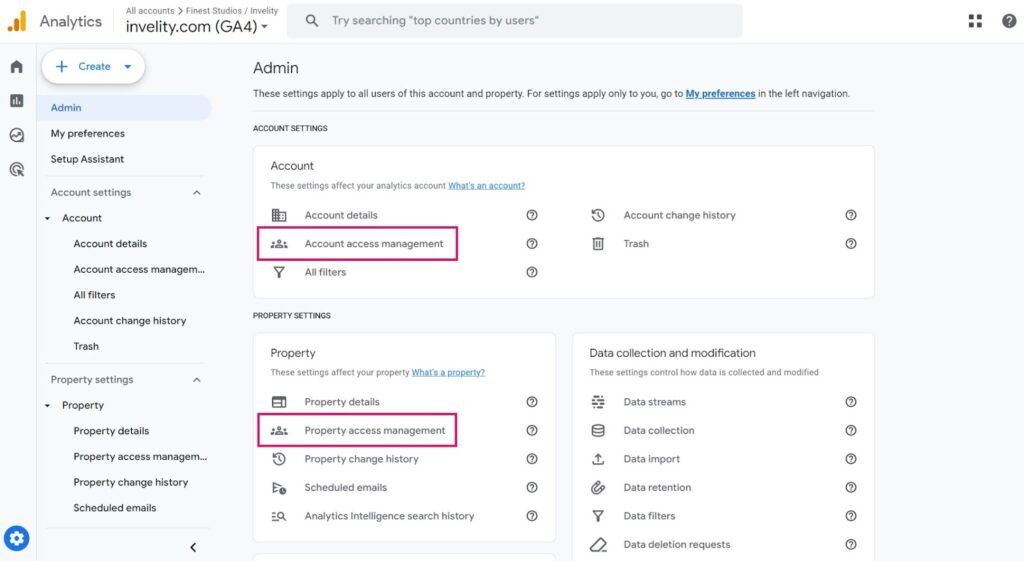
After signing in to the account, click the cog icon (settings) in the bottom left corner.

If you want the agency to see and work with all the data, you have to grant it access at the highest level, that is at account level. Click the Account access management option.
After clicking you will see an overview of every user who already has access to the account. You will also see their permissions there, which you can edit in this section. The second alternative is to give the agency access only at the level of a particular property, through the Property access management option. This access may not be enough for the agency, though.
To grant access, then click the + icon in the blue circle and choose the option to add a new user.

Here you only have to enter the email address of the agency you want to add access for and set its permissions – the actions it can carry out.
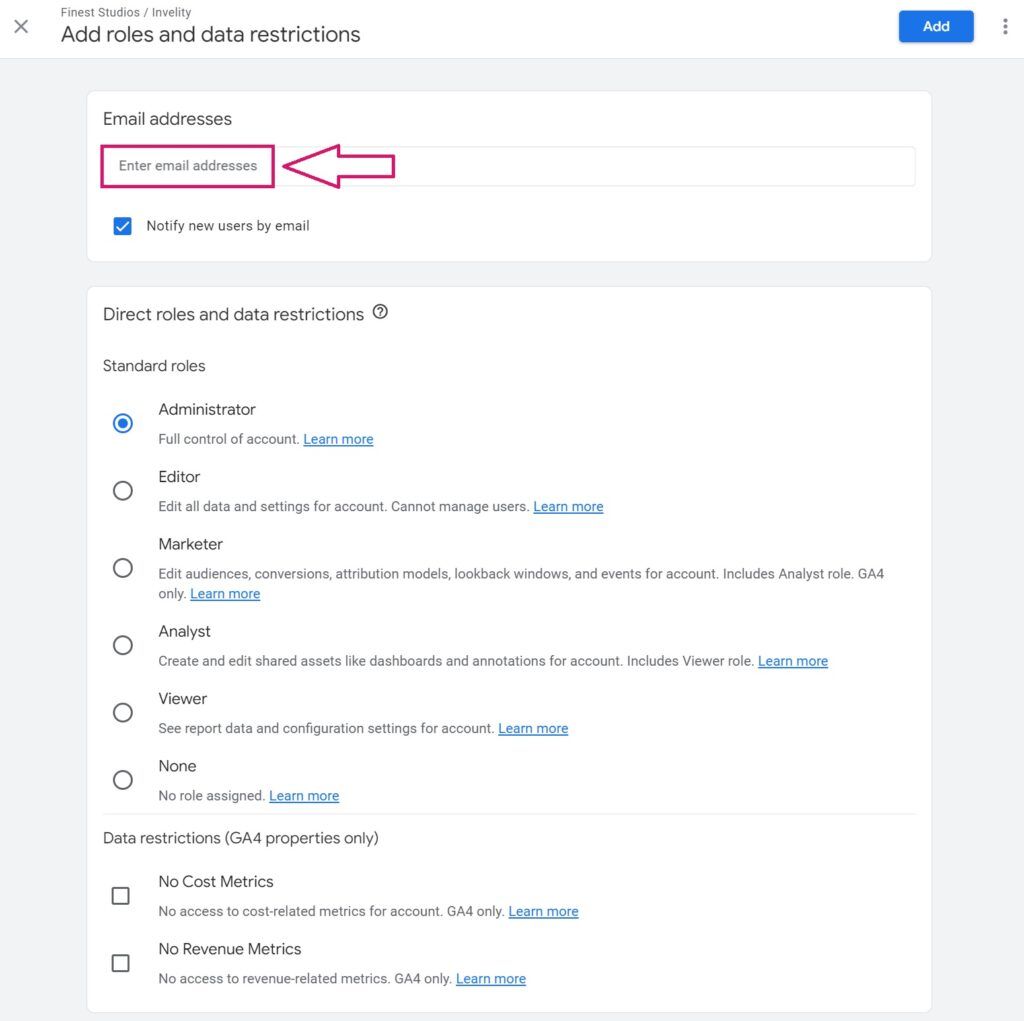
It is best to give the agency all permissions so that it has access to all the data and can manage users. So that you know what the individual permissions are and what they mean, we give a description below.
A description of user permissions:
After adding the email address and assigning permissions you only have to click the Add button, which grants the agency access.
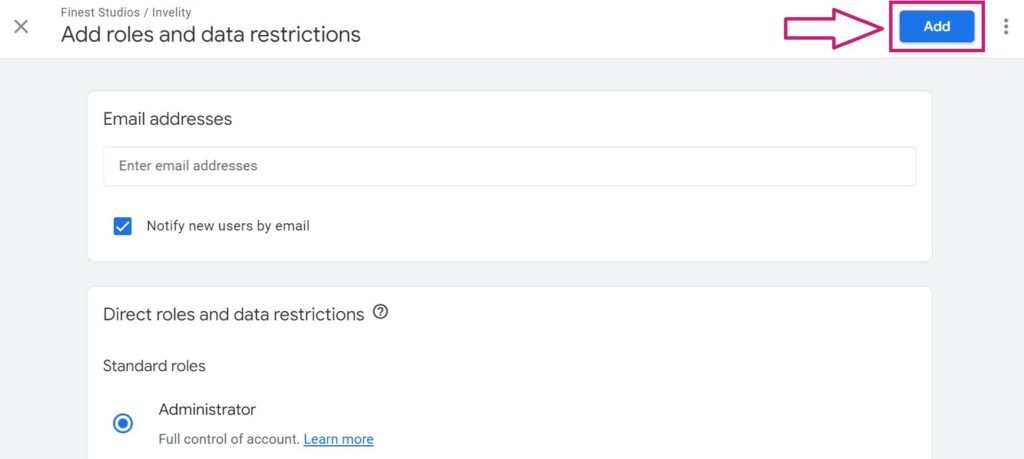
With these few simple steps you grant your agency access to your Google Analytics account. Thanks to that it will be able to analyse visitors' behaviour on your site and propose effective strategies for your business.
Does the agency look after your Facebook campaigns too? Do not forget to grant it access to Business Manager. LinkedIn is also a popular platform for brands at present. Take a look at the guide to doing the same in LinkedIn Business Manager.

Barbora Mikušová
Managing Director
The latest trends, proven practices and analyses from the digital world. Find out how to take your technology and marketing growth further.
And don't forget to check out Invelity Extras – you'll find a marketing glossary, useful tools and plugins to make your work easier!
Invelity Extras


