Granting and requesting access to LinkedIn Business Manager
Business Manager on LinkedIn is a tool that helps manage and organise all your ad accounts and pages better. It also lets you share access and data, for instance…
Business Manager on LinkedIn is a tool that helps manage and organise all your ad accounts and pages better. It also lets you share access and data with people on your team, for instance, which allows better collaboration and results. It works essentially the same way as Business Manager on Facebook.
In the following guide we will show how to create a new Business Manager and how to share access with another Business Manager, whether that is the agency managing your advertising or another partner.
Creating a LinkedIn Business Manager - the procedure
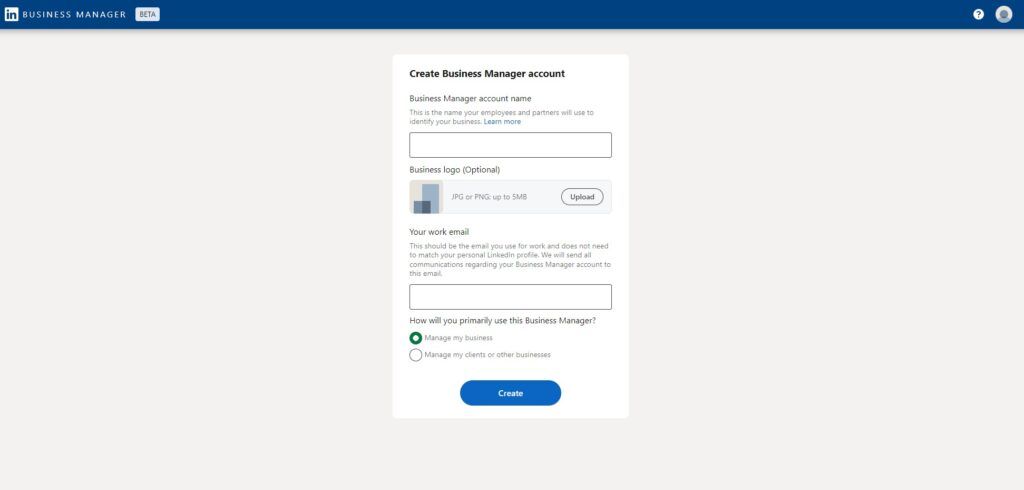
1. On this page you will find the Create Business Manager button. In the next step you enter the Business Manager's name, upload a logo in the required size and format, enter an email and in the last option choose Manage my business if you are creating a Business Manager for yourself.
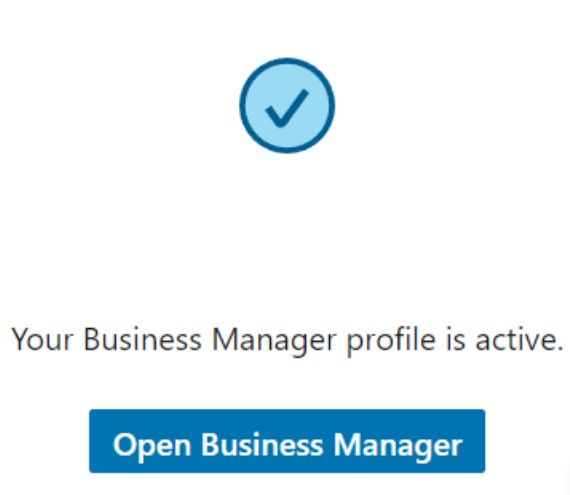
2. You will then receive a confirmation that the Business Manager has been created at the email you entered in the previous step, where you simply accept the invitation. It looks like this:
3. Next you confirm your identity and the Business Manager is created.
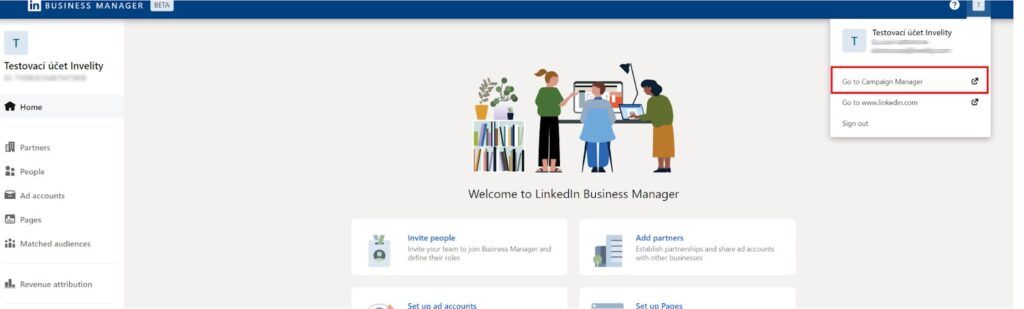
4. After clicking the Open Business Manager button you will find yourself in this interface. In the second step you also need to create an ad accountthrough Campaign manager. LinkedIn works very much like Meta (Facebook), where you likewise first have to create a Business Manager and can then create ad accounts under it and manage them in Campaign manager.
You first need to set up a Campaign manager account. In the top right corner you click through via the icon with your Business Manager's name and click the Go to Campaign manager option.
5. Next you fill in all the necessary information - the ad account's name; if you already have a page created you add its URL, or create a new one, and choose the currency the ads will be set up in.
6. You then return to Business Manager and add the ad account you have just created in Campaign manager.
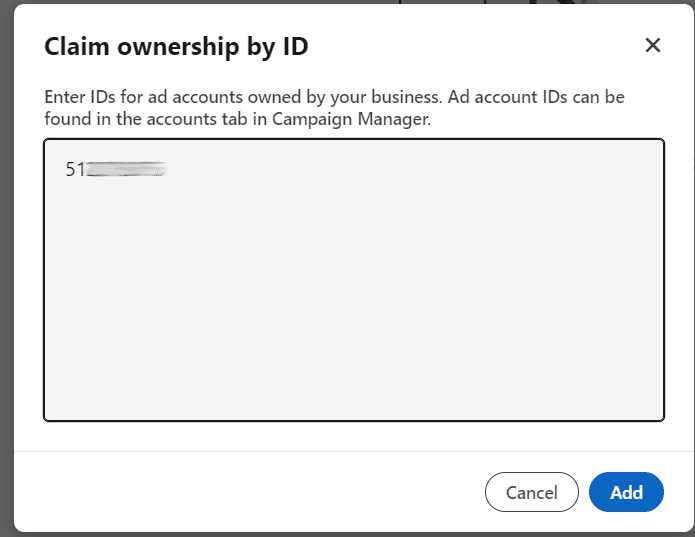
7. In our case we choose the first option: Claim ownership (ID). If we wanted to add someone else's ad account to our Business Manager, we would choose Request access.
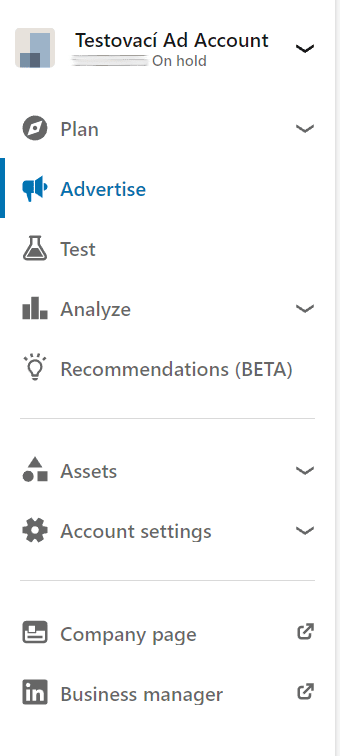
8. So we continue with the first option. You will find your ad account's ID in Campaign manager, in the top left corner.
9. You then enter this ID number in the Claim ownership step mentioned.
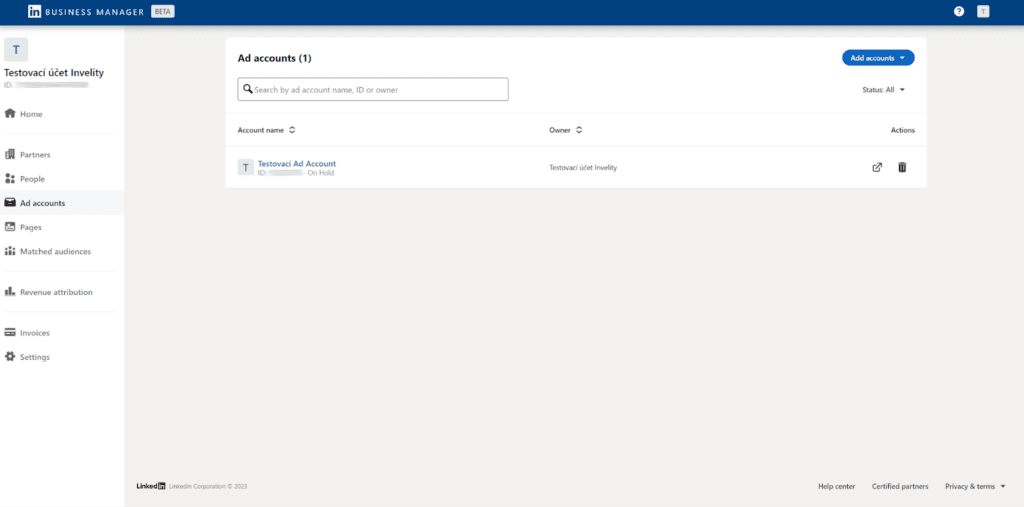
10. After adding this ad account in the Business Manager interface and clicking through to the Ad accounts option on the left, you will see the ad account you have just added.
11. In the first part of the guide we showed how to create a Business Manager and pair an ad account with it through Campaign manager, as well as a page.
Sharing access with an agency or another Business Manager
In the second part we will show how to connect your Business Manager with the Business Manager of the agency that will manage your advertising, and how to share the ad account and page too.
1. Ask the agency for its Business Manager ID. Then go to the Partners option and copy the ID of the Business Manager you want to add and confirm by clicking the Add partner button. For testing purposes we requested partner access to our Invelity agency Business Manager.
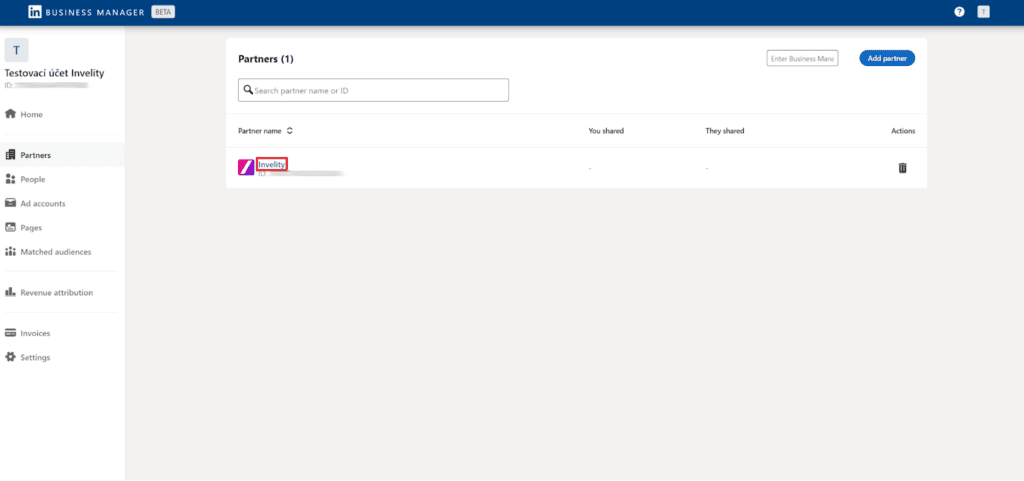
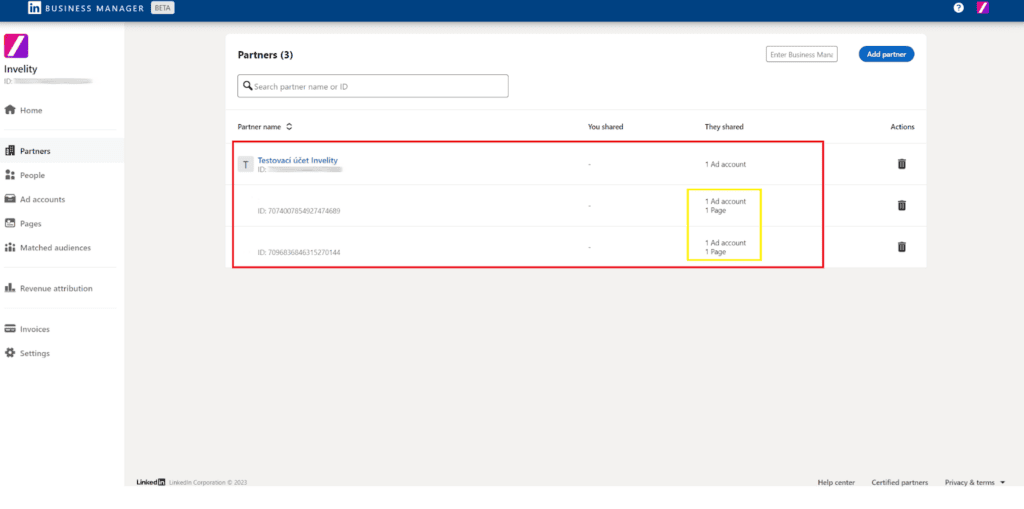
2. Once approved, the new Business Manager should appear in the partners section. Next you need to share the ad account and the page too.
Sharing the ad account and page
1. Again we go to the Partners section, where the shared Business Manager is already showing. We click the partner's name.
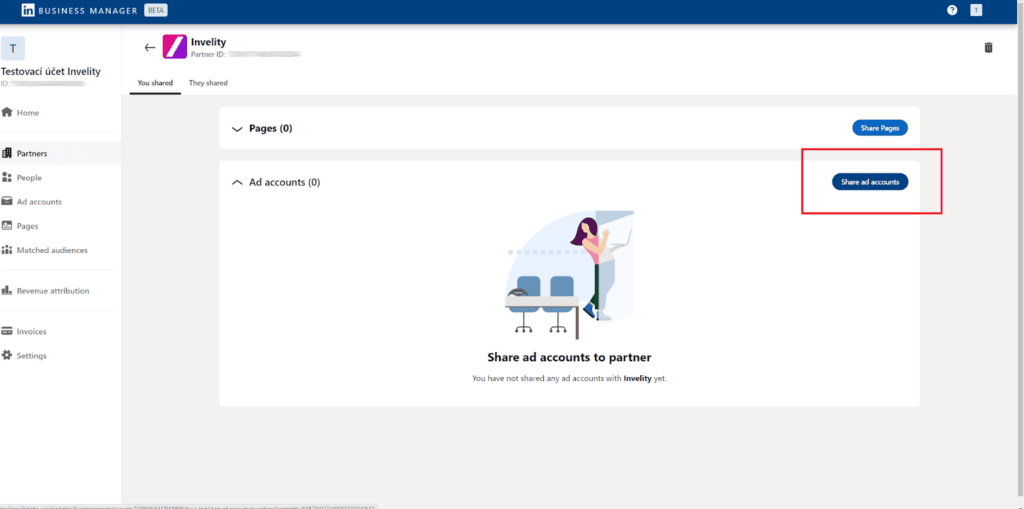
2. We will then see the option to share pages and ad accounts. You need to click Share ad accounts.
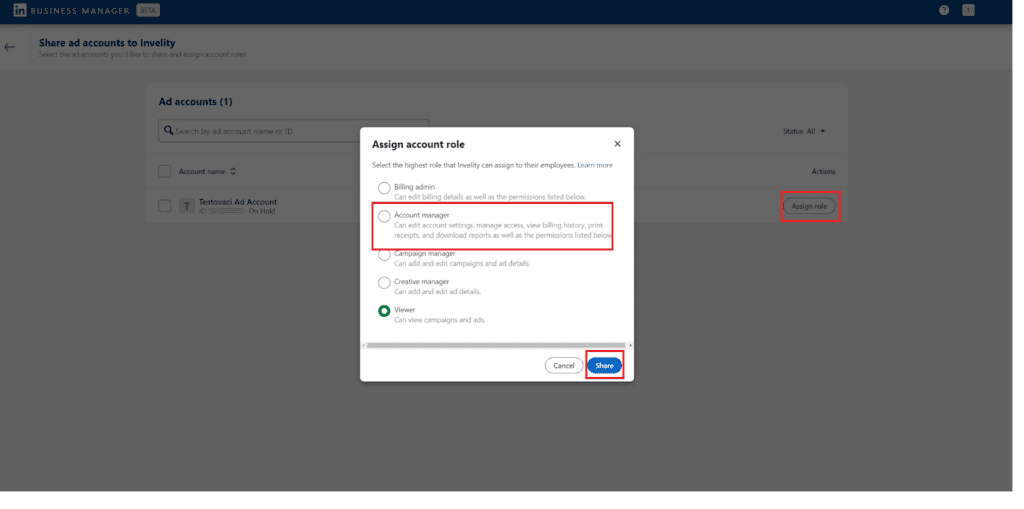
3. You will then see all the ad accounts you have created and will be able to share access with another partner. We choose the account role according to what and to whom we are granting access. If it is for campaign management, select Account manager or Campaign manager.
4. You add pages the same way. I did not assign any page to this test account, so I cannot see one there.
Once all the necessary access has been added (ad account and page) it should look like this.
Do not forget to add billing details through Campaign manager and Account settings, and your account is fully ready for use and for setting up advertising.
Recommended reading
The latest trends, proven practices and analyses from the digital world. Find out how to take your technology and marketing growth further.