How to share Meta Business Manager with your agency
We have already explained what Business Manager is, why it matters and how to create it.

Valéria Lapínová
PPC & SEO specialist
28. November 2024
2 min
BeginnerWe have already explained what Business Manager is, why it matters and how to create it.
Valéria Lapínová
PPC & SEO specialist
28. November 2024
2 min
BeginnerWe have already explained what Business Manager is, why it matters and how to create it. You can go back to it and read it in our guide: How to create a Facebook Business Manager. But what if you already have a Business Manager and want to work with an agency and share your data with them? We certainly recommend taking the Partnership route within Business Manager. In this short article we will show step by step how to go about it.
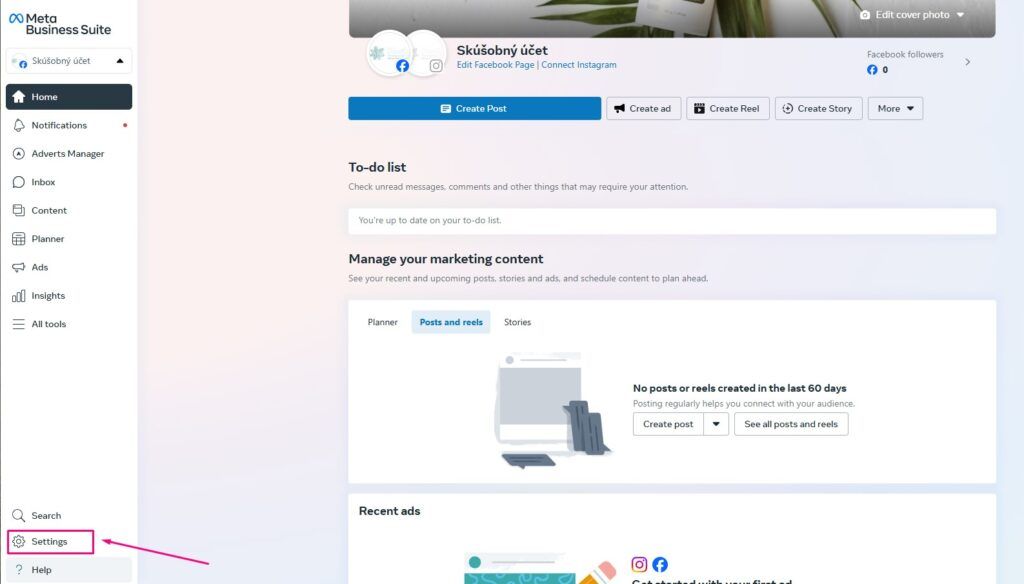
Open https://business.facebook.com/ and sign in. Click the "Settings" section.
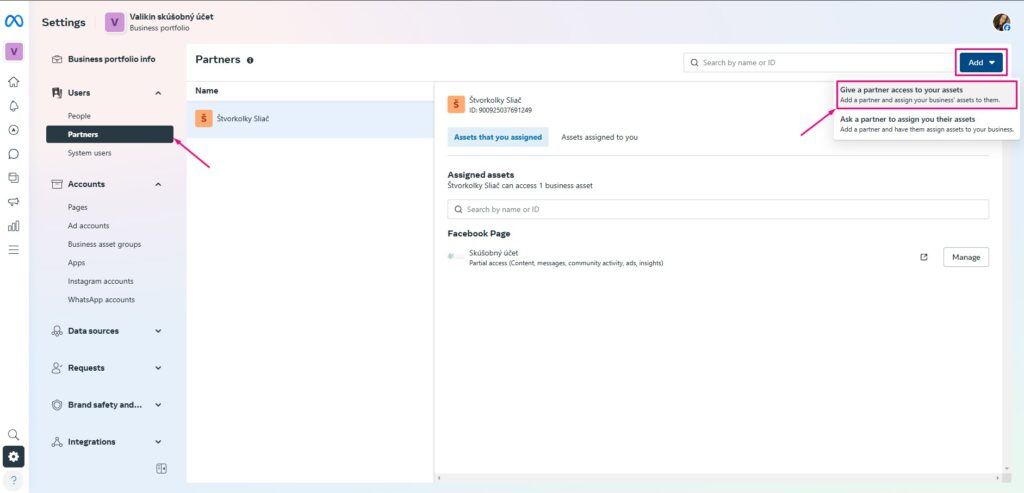
In the left menu, in the "Users" section click the "Partners" option. Click the "Add" button and choose the option "Give a partner access to your assets".
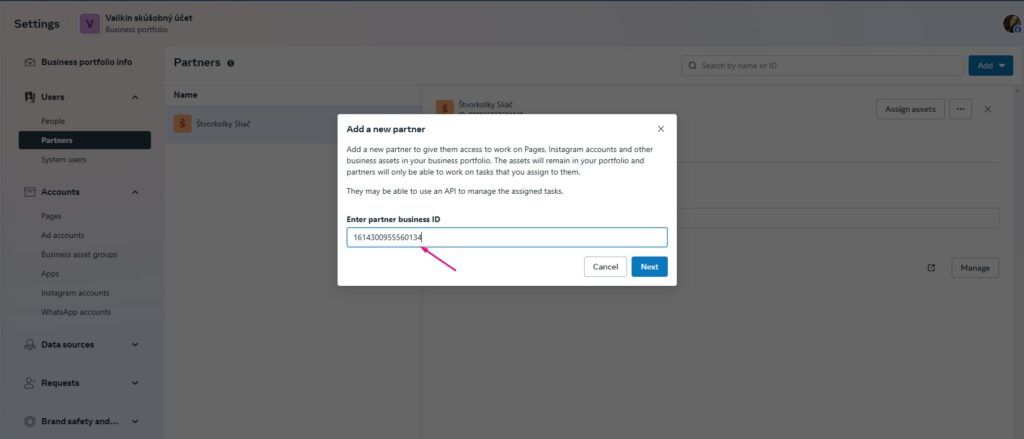
After clicking "Add" a window opens where you need to enter your partner's/agency's Business Manager ID (Invelity ID: 1614300955560134) and click "Next".
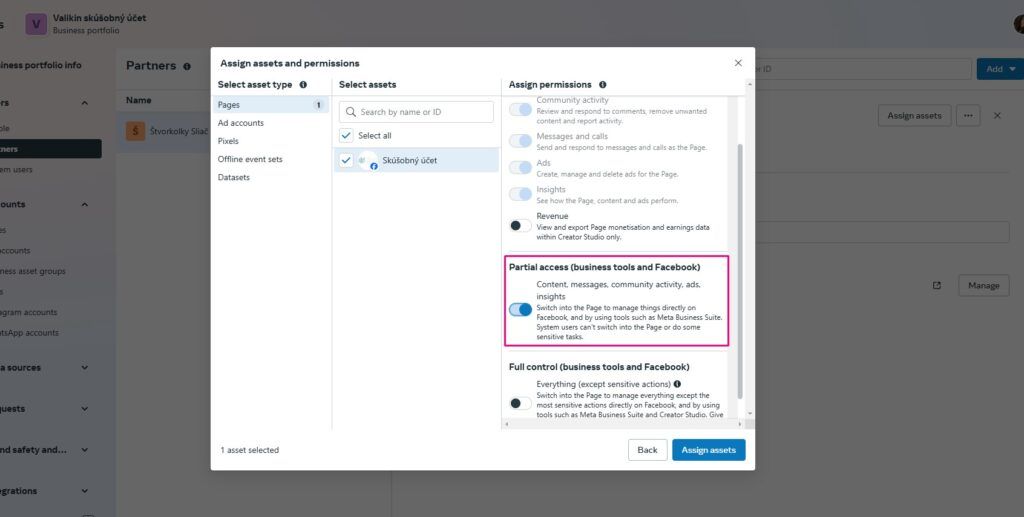
In this step we choose the asset – the Facebook page you want to share with the agency – and it needs the relevant rights granted, then click Assign assets.
It is best to give the agency the highest rights - Full Control - where it can manage the whole company page, publish posts, reply to comments, manage roles on the page and all access, and make any changes. When your agency has the highest rights it can help better and respond when problems arise.
(Note: if you want to share the page, ad account and pixel at once, first select them all, choose the access type and only then click Assign assets.)

If you do not want the agency to have top-level permissions, though, grant it rights in the Partial Access section.
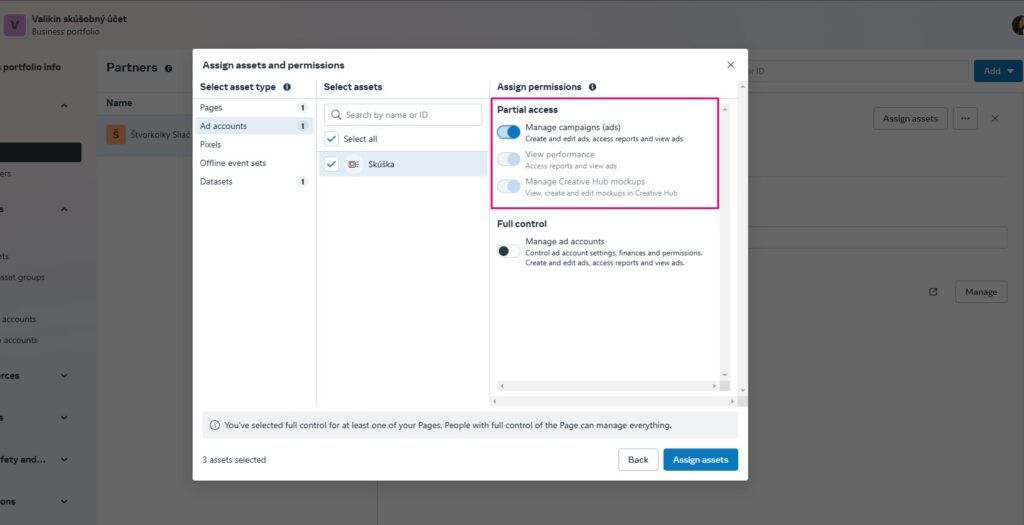
In this step you choose the asset – the ad account you want to share with the agency. It needs the relevant rights granted, then click Assign assets.
It is best to give the agency the highest rights - Full Control. Then within the ad account the agency can also look into the Finance section and respond and help better when problems arise.

If you do not want the agency to be able to reach the Finance section, all the standard Partial Access rights will be enough.
In this step you choose the asset – the pixel you want to share with the agency. It needs the relevant rights granted, then click Save changes.
With the Facebook pixel it is necessary to give the agency the highest rights - Full Control. Then it can control every pixel setting, connect it with the product catalogue and create audiences.

After these steps the agency will see your ad account, page and pixel and can work with them. It was simple, was it not? If you get stuck at any step or need other help, feel free to get in touch, we will be glad to help.
Get in touch and arrange a meeting with us in Bratislava, Zvolen or even San Francisco. We will be glad to help you with your project.
Valéria Lapínová
PPC & SEO specialist
The latest trends, proven practices and analyses from the digital world. Find out how to take your technology and marketing growth further.
And don't forget to check out Invelity Extras – you'll find a marketing glossary, useful tools and plugins to make your work easier!
Invelity Extras