Working with HTML: how to avoid beginners' mistakes
HTML (Hypertext Markup Language) is the basic building block of every website.

Barbora Hermanová
Project Manager
27. September 2024
6 min
BeginnerHTML (Hypertext Markup Language) is the basic building block of every website.
Barbora Hermanová
Project Manager
27. September 2024
6 min
BeginnerHTML (Hypertext Markup Language) is the basic building block of every website. Although it seems fairly simple, beginner developers often make mistakes that can cause problems with pages' functionality, legibility and accessibility.
In this article we will look at the most common mistakes beginners should avoid and how to solve them effectively.
One of the most common mistakes beginners make is ignoring or not understanding the basic structure of an HTML document. Every HTML page has to have a particular, prescribed format so that the browser interprets the content correctly. If we do not keep to this structure properly, we cause various problems such as errors when loading pages, incorrect display of content or even complete failure to load the page.
This first line of an HTML document is the document type declaration, which tells the browser the document uses HTML5. If beginners forget to add this line, the browser may not interpret the code correctly and may start so-called "quirks mode" (backward compatibility), which can lead to the page being rendered incorrectly.
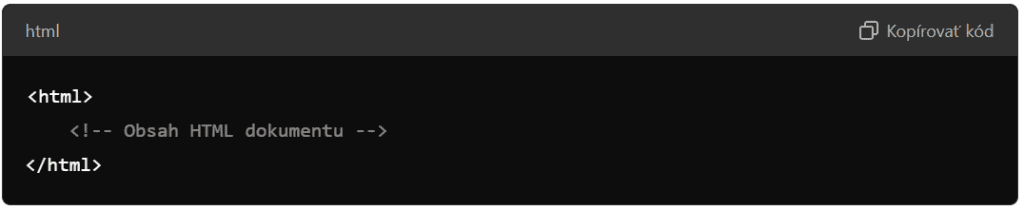
Beginners often forget to add the <html> tag, which is essential because it marks the start of the whole HTML document. All the document's content must be nested between the opening <html> tag and the closing </html> tag. These tags signal to the browser that the code between them is HTML code:
Another common mistake is neglecting to separate the document's head (<head>) from its body (<body>).
The <head> tag contains metadata about the page such as character encoding, the page title (shown on the browser tab), links to external files (CSS, for instance) and scripts that have no direct visual effect on the page.
For instance:

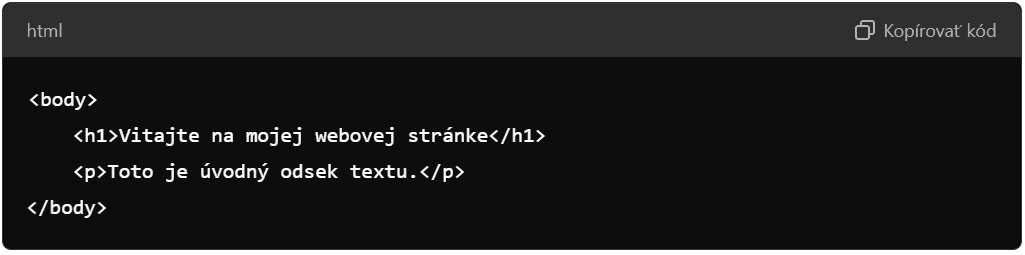
The <body> tag contains the page's actual content, visible to users. Text, images, links, tables, forms and other visual elements are placed here:
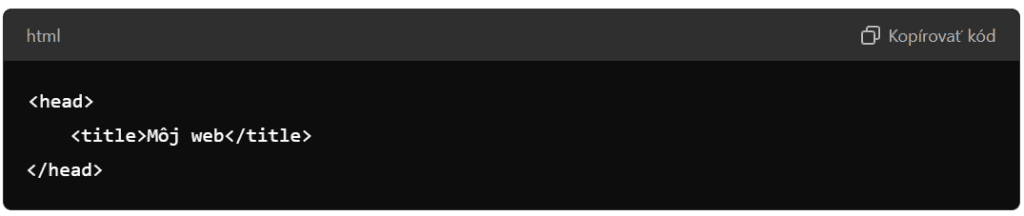
Another element beginners often ignore is the <title> tag, which sits inside <head>. This tag determines the website's title, shown on the browser tab. It matters for SEO (search engine optimisation) too, since the page title is one of the first elements Google indexes.
An example of correct use:
Although it is not visible on the page, declaring the character encoding with the <meta> tag matters greatly too. If beginners neglect this tag, they may run into problems with diacritics or other special characters displaying incorrectly.
This declaration is most often used:

For an HTML document to work properly, its structure has to be complete and follow these basic principles. An HTML document must begin with the <!DOCTYPE html> declaration, which tells the browser it is an HTML5 document. The page should then be structured and the complete document should look as follows:

This way you make sure the browser knows exactly how to process the code and the page displays as it should. A proper HTML structure is not only about functionality but also about code maintainability, search engine optimisation and user accessibility.
Another common mistake is not closing tags. You must close every tag, though there are a few exceptions. There are also so-called self-closing tags such as <img> or <input>.
Every opening tag should have a matching closing tag.
For instance:

In the case of empty tags such as <img> or <br>, they should be self-closing:

Using attributes is key to proper functionality and accessibility. Beginners often forget important attributes such as alt for images, which can have a negative effect on SEO and on accessibility for users with visual impairments.
Besides that, not adding attributes such as href in links or src in images can mean browsers or assistive technologies cannot load the content correctly. Using attributes correctly and consistently also improves the code's legibility and maintainability for other developers.
Every image should have an alt attribute describing its content:

This attribute matters for search engines and screen readers alike.
Developers often overlook comments in code, but you will certainly appreciate them during later maintenance or when working together on a project. Beginners often write code without comments, which makes it harder to understand. Without comments, other developers who work on the project later will struggle to grasp the code's logic or find out why you made certain decisions. Comments also help with finding your way around larger files quickly and can speed up fixing errors or adding new features.
Using comments with <!-- --> is a simple way of noting important parts of the code:

Beginners often place elements in the wrong contexts. For instance they use block-level elements such as <div> inside inline elements such as <span>, which leads to layout errors and illegible code. This mistake can mean the page does not work properly in every browser, because different browsers may interpret invalid element nesting differently. Incorrect arrangement also complicates later maintenance and reading of the code, because it can seem chaotic and harder for other developers to follow.
Keeping to the correct hierarchy is key. Placing inline elements such as <span> inside block-level elements such as <div>, for instance, is fine:

But the other way round is not correct.
A common bad habit is using the <br> tag to create space between elements. This solution, though, is not suitable for modern web design. Using <br> to lay out content leads to unclean code and reduces flexibility in adapting pages to various devices and screens.
Modern web design techniques such as CSS allow far more effective, more accessible solutions for laying out elements while preserving the code's structure and legibility.
Use CSS for layout and creating space:

Beginners tend to write repeated code, which leads to inefficient websites and needlessly large code. Repeated code raises the maintenance burden, because if changes have to be made they must be applied in several places, which raises the risk of errors.
The solution is to use template systems, components or external files, which allows more effective code management and reuse, thereby reducing the overall file size and improving the page's performance.
Optimising code matters. If several pages use the same header, for instance, create an external HTML or template file.
Accessibility should be a key part of every web project. Beginners often neglect using semantic tags and ARIA attributes, which reduces a page's usability for people with disabilities.
Using semantic tags such as <header>, <nav>, <article> and <footer> improves the page's structure. It is good always to try to use a semantic tag first and, if you find no suitable one, only then resort to non-semantic tags.
For instance:

Developers often do not use tools to check their HTML code, which leads to invalid pages that can work badly in various browsers. Invalid code causes various errors such as incorrect layout rendering or non-functioning interactive elements, and thereby affects the user experience negatively.
Validating HTML with the various tools meant for it helps uncover these errors in the early stage of development, which makes sure the page is compatible with several browsers and improves its accessibility and stability.
There are many tools for validating HTML code that uncover errors in the code and help fix them.
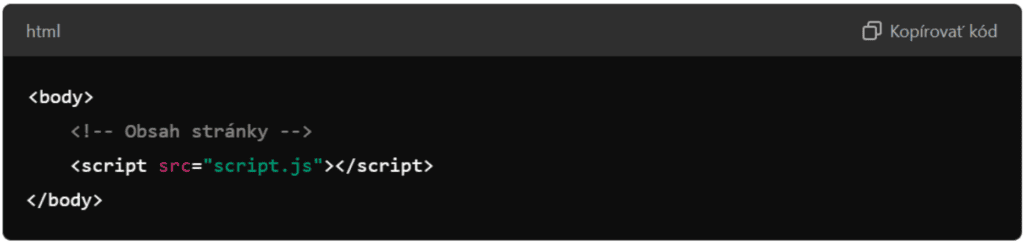
Placing external CSS and JavaScript files incorrectly or linking them badly is another common mistake. Placing JavaScript in <head>, for instance, can slow the page's loading.
External JavaScript should be linked before the end of <body> so as to avoid blocking the page's loading:
HTML may seem complicated to an ordinary person at first sight, but in reality the opposite is true. Finding your way around it can be simple, but even small mistakes can have a big effect on a page's functionality and accessibility. By learning to avoid these common mistakes you can create robust, professional websites. Do not forget to keep to proper structures, use attributes and comments and validate the code, which will help you avoid many problems in future.
Barbora Hermanová
Project Manager
The latest trends, proven practices and analyses from the digital world. Find out how to take your technology and marketing growth further.
And don't forget to check out Invelity Extras – you'll find a marketing glossary, useful tools and plugins to make your work easier!
Invelity Extras