
I am interested in a tailor-made website
Get in touch and arrange a meeting with us in Bratislava, Zvolen or even San Francisco. We will be glad to help you with your project.
Unlike the previous version, the new Google Analytics 4 has no built-in feature for excluding URL query parameters from reports. For this you therefore have to use Google Tag Manager, which allows URL filtering. Read on for what query parameters actually are, what they are for and how you can remove them from your Google Analytics account.
Query parameters are parts of a URL with additional information for the web server. Thanks to them it can carry out a specific action. They are placed after a question mark (?). Each parameter is separated by an ampersand (&) and consists of a name and a value separated by an equals sign (=).
Query parameters (marked in red) may look like this, for instance:
https://www.invelity.com/hladat?utm_source=priklad45&utm_medium=cpc&productid=16485
Google Analytics 4, like its predecessor, considers the same page two different web pages if they contain different query parameters.
Let us show it with a specific example: these 2 URLs show the same sub-page. GA4, though, treats them as 2 different pages in its reports.
/en/services?utm_source=priklad&product=test&kwgid=12633
/en/services?utm_source=priklad&product=test&kwgid=45454
What is the problem? Imagine you own an e-shop with thousands of products that can be filtered by colour, size or other parameters. Every combination of these parameters appears in the URL as a query. It will then be far harder for you to record one page's or product's performance. Even with a single product, query parameters will fragment your data.
First sign in to your Google Analytics account and choose the property you want to show query parameters for.
In the left panel click the "Explore" option. This section lets you create your own reports and explore data as you need.

Click the "+ New exploration" button and create a new custom report.

In the exploration you need to add the dimensions and metrics you are interested in. In the panel on the left click "Add dimensions" and "Add metrics".

Click "Add filter" and choose "Page path + query string" with the condition contains "?".
As we already mentioned, query parameters come after a question mark. Thanks to this filter you will see them all.

An illustration of what your report will look like:

In it you can see all the unnecessary parameters.
Sign in to your Google Tag Manager account. Click "Templates" and then "Search Gallery" under the "Variable Templates" section.

Then find the template named "Query Parameter Stripping Utility" from the creators at the analytics firm Cardinal Path.
Click "Add to workspace" and "Add".
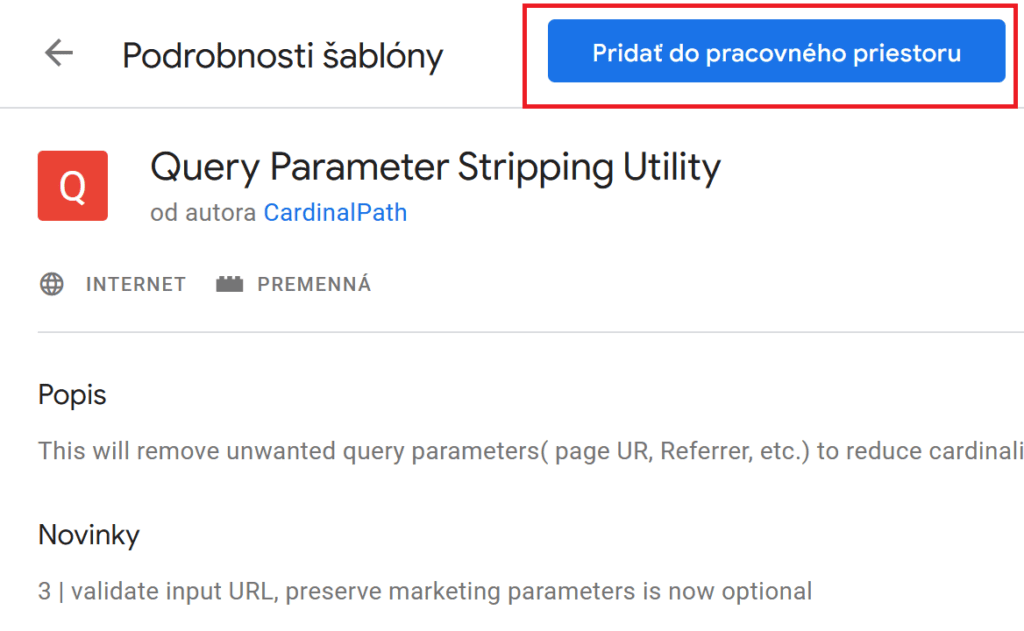
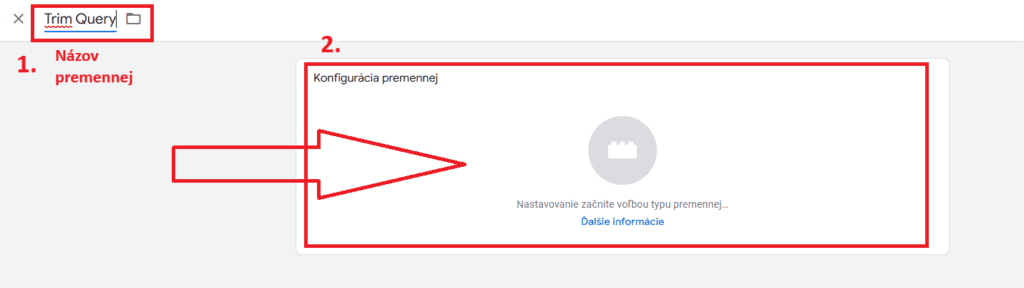
In the left panel go to the "Variables" section and then click "New" in the "User-Defined Variables" section.

Name the variable so that you know what it stands for. At Invelity we use the name "Trim Query". Then click "Variable configuration." The right panel with various variables will open.
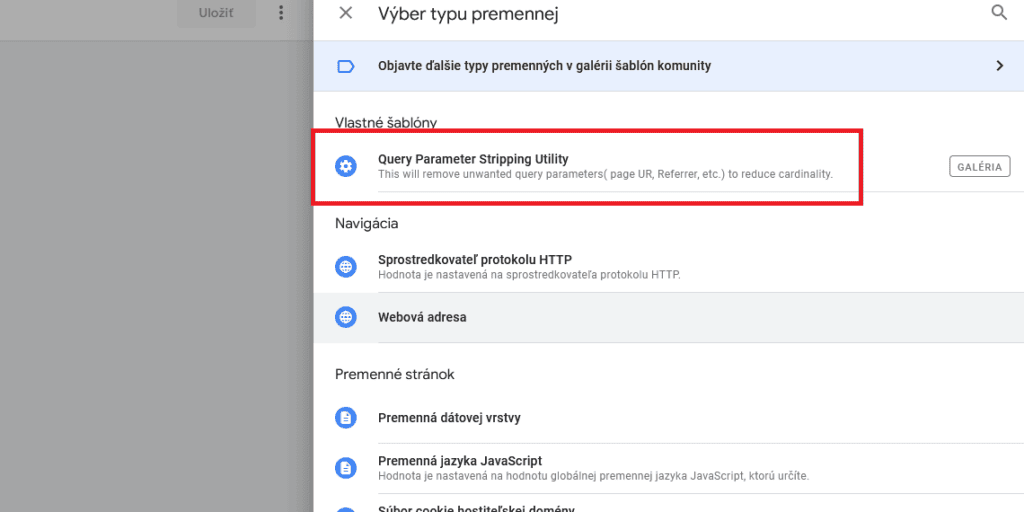
Among the variables choose the one named "Query Parameter Stripping Utility".
Now your variable's configuration will appear. Here you leave the "Exclude All Parameters" box ticked, unless you plan to exclude only some selected ones. If you do, choose the second option "Exclude Certain Parameters". In the first field you can keep parameters if you wish; if not, leave the field empty.
In the bottom field "Field which needs parameters removed" enter the variable named {{Page URL}} and click "Save" in the top right.

In the left panel click "Tags" and find your Google tag, or the older "Google Analytics: GA4 Configuration" tag. Click it and then "Tag Configuration".

Now the tag's settings will open. Go to "Configuration settings". After clicking "Add row" 2 new fields will appear that you have to fill in.

In the first field under "Configuration parameter" add the value page_location and in the second under "Value" add {{Trim Query}}
Finally do not forget to save the tag with the button in the top right.

Do you want to test whether parameter removal is set up correctly? Click "Preview" in the top right.
Then enter your website's URL. Add the query parameters from the report to it, or enter test ones.
Do not forget that query parameters come after "?" and are separated by "&".
Now you only have to click "Connect".
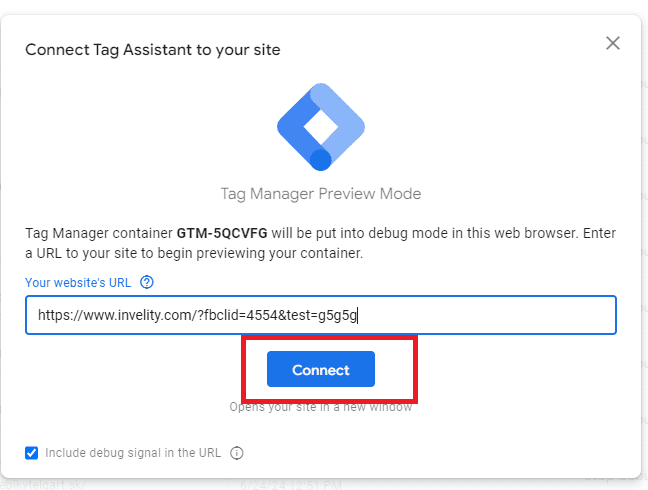
Tag Assistant will automatically open a new window with your site. You therefore have to click back to the window with Tag Assistant.
In the left menu you will find the events where tags fire. You will most likely find your Google tag under "Container Loaded", or under "Consent Update" (the name may differ slightly depending on the cookie bar).
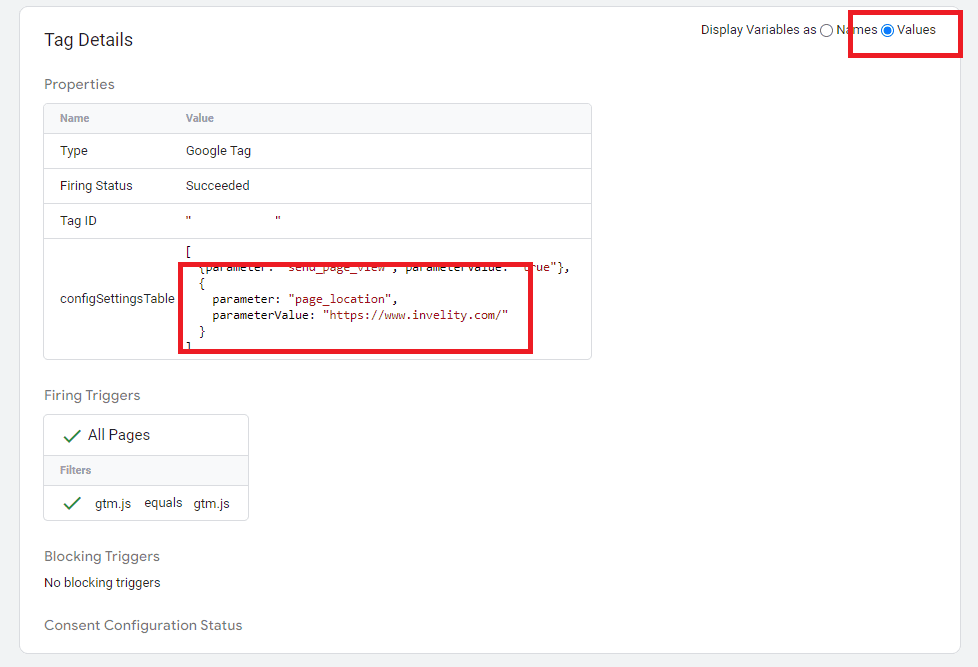
After clicking the Google tag, a window will open with the information the tag sends. In the top right next to "Display Variables as" tick "Values". This way you can check whether the "page_location" parameter contains any excluded query parameters.
You can also check the removal of query parameters through GA4. Take a look at how to grant access to Google Analytics.
After clicking "Admin" in the left menu, click through to "DebugView". Once your Google tag fires, events will appear. Click the event named "page_view" and find your "page_location" parameter again, where you will see the URL without queries.

If everything works as it should, do not forget to click "Submit" in Tag Manager in the top right and publish your changes. If you cannot make sense of it, do not hesitate to get in touch. We will be glad to help.
Get in touch and arrange a meeting with us in Bratislava, Zvolen or even San Francisco. We will be glad to help you with your project.

Martin Jelínek
Certified PPC Specialist & Data Analyst
The latest trends, proven practices and analyses from the digital world. Find out how to take your technology and marketing growth further.
And don't forget to check out Invelity Extras – you'll find a marketing glossary, useful tools and plugins to make your work easier!
Invelity Extras


