If you have decided to hand communication, content creation or the management and setup of Facebook ads over to a marketing agency, the first thing to do is grant the agency access to your business page. In this article we will show you a guide and the individual steps for doing that.
There are two possibilities. The first: if you have not yet created a Business Manager, that will be the first step you have to take. What Business Manager actually is, why it matters and how it is created is something we have already explained. You can go back to it and read it in our guide "How to create a Facebook Business Manager".
The second possibility: you already have a Business Manager and want to work with an agency and share access to your Facebook page with it. We definitely recommend going the Partner route within Business Manager.
1. Getting to Business Settings within Business Manager
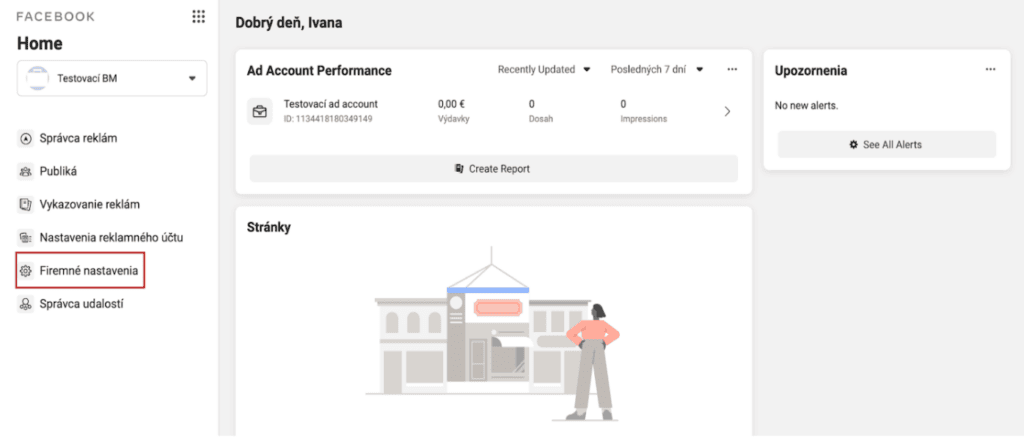
If you are on the home page of your Business Manager, you need to reach Business settings in the left-hand menu.
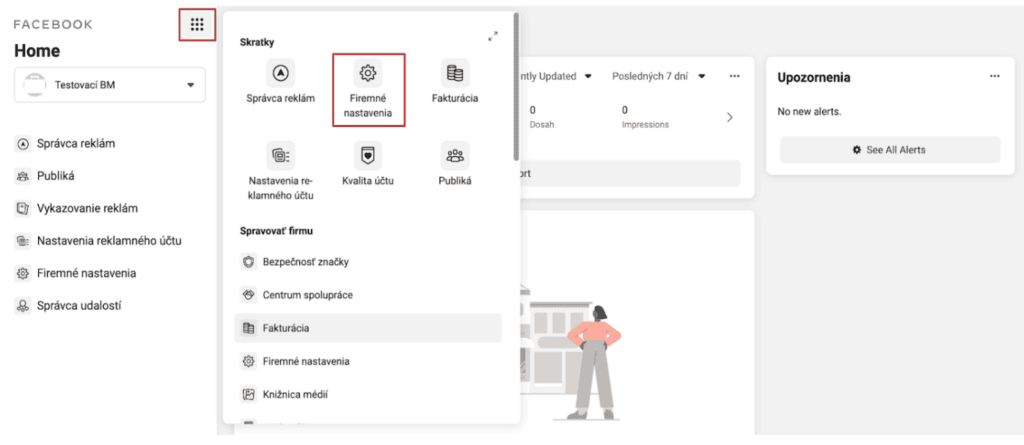
Or you can reach this section through the nine-dot icon.
2. Within Business Settings, go to the Partners section
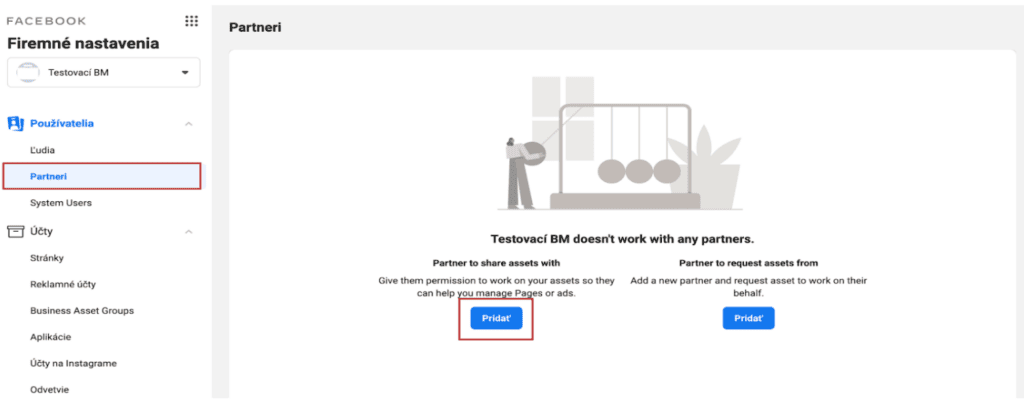
You get here easily through the left-hand menu again, clicking Partners under the Users section.

3. Share access with your agency or partner
Once in the Partners section, click the option to share access with a partner — Partner to share assets with.
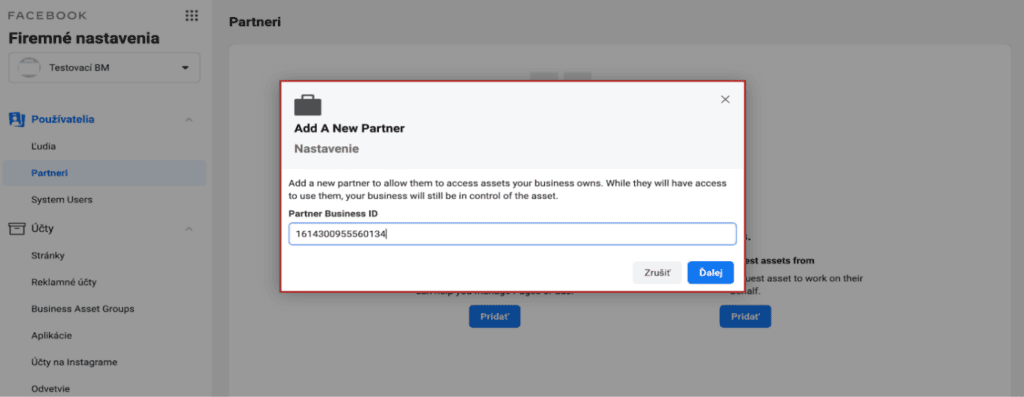
Clicking Add opens a window where you have to enter the Business Manager ID of your partner or agency (Invelity ID: 1614300955560134) and click Next.
4. Share your Facebook business page with the agency
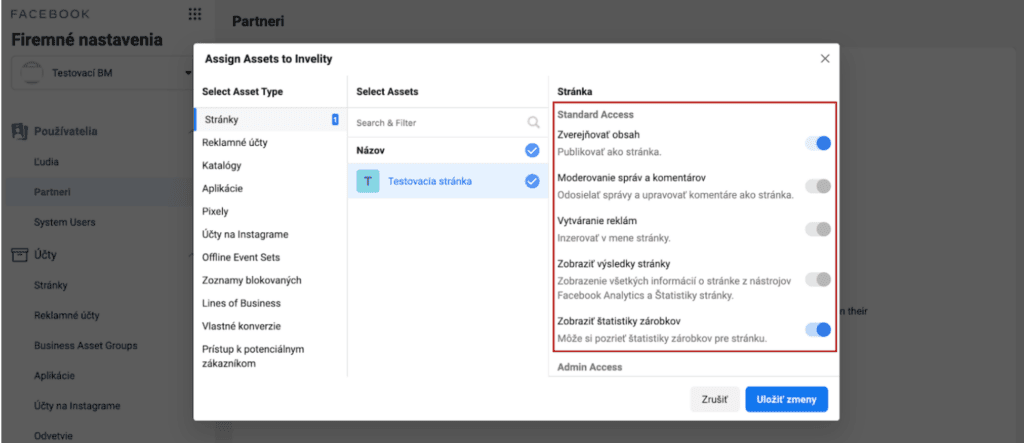
In this step we choose the asset — the Facebook page you want to share with the agency — and grant it the relevant permissions, then hit Save changes.
It is best to give the agency the highest permissions, Admin, which allows control over the whole business page: publishing posts, replying to comments, managing page roles and all access, and making any edits. When your agency has the highest permissions it can help and respond better when problems arise.

If you would rather the agency not have permissions at the highest level, where it can see and work with the roles of other users of the Facebook page, then for the purposes of its work the permissions under Standard Access will be enough.
After these steps the agency will see your Facebook page within its own Business Manager and can work with it. Simple enough, wasn't it? :) If you get stuck at any step, or need other help, do get in touch — we are glad to help. :)