Have you decided to hand management of your ad account over to an agency? First of all you have to grant it access so it can create new campaigns or improve current ones with the aim of…
Have you decided to hand management of your ad account over to an agency? First of all you have to grant it access so it can create new campaigns or improve current ones with the aim of bringing the desired results. In this article we will quickly show where to find the approval request from the agency and how to approve its access.
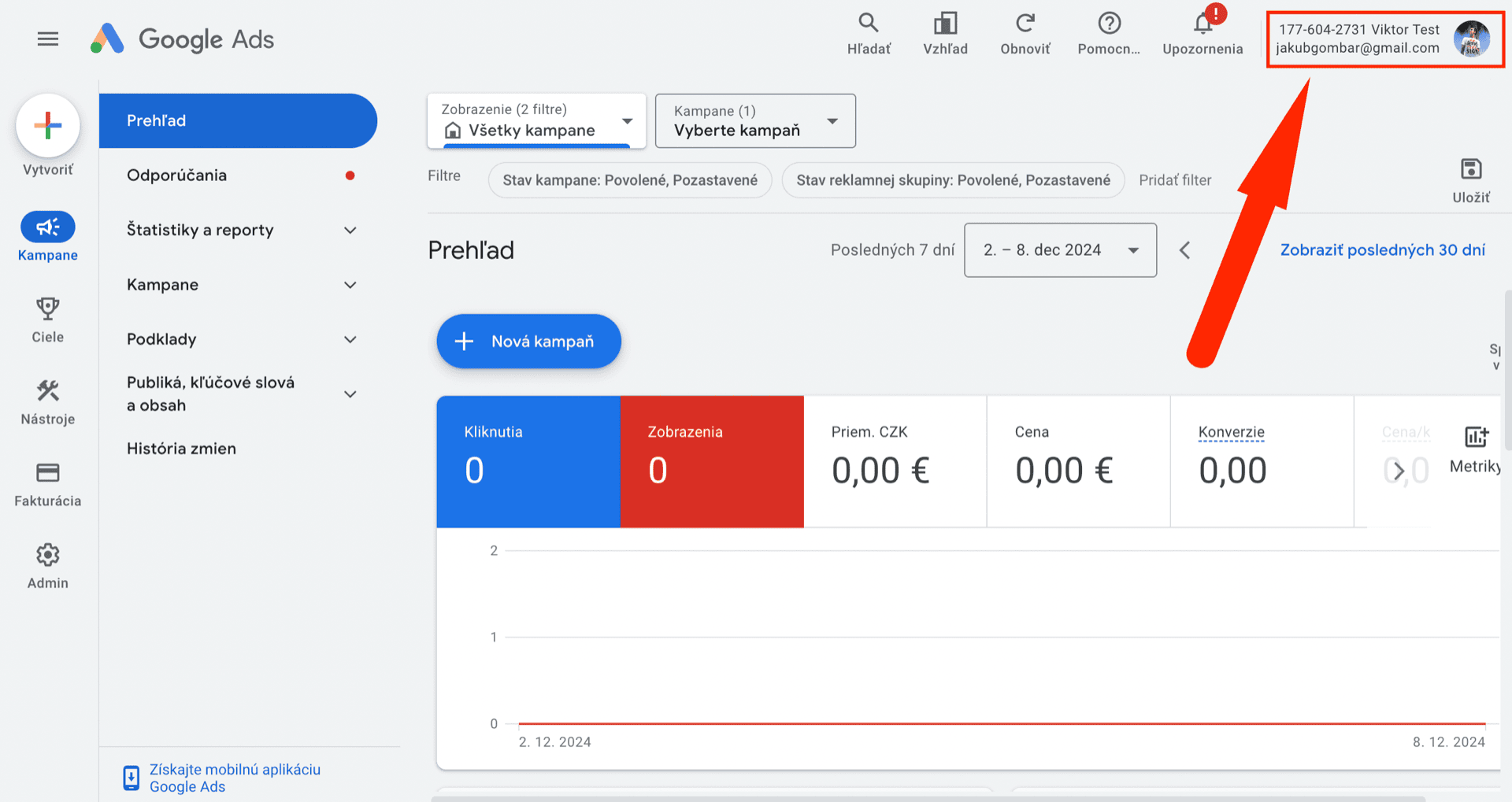
The first step is on the agency's side, which requests access to the ad account on the basis of your account ID number, made up of 10 digits. You will find the account ID after signing in, in the top panel on the right just next to your email. The account ID has the format XXX-XXX-XXXX.
Access and security
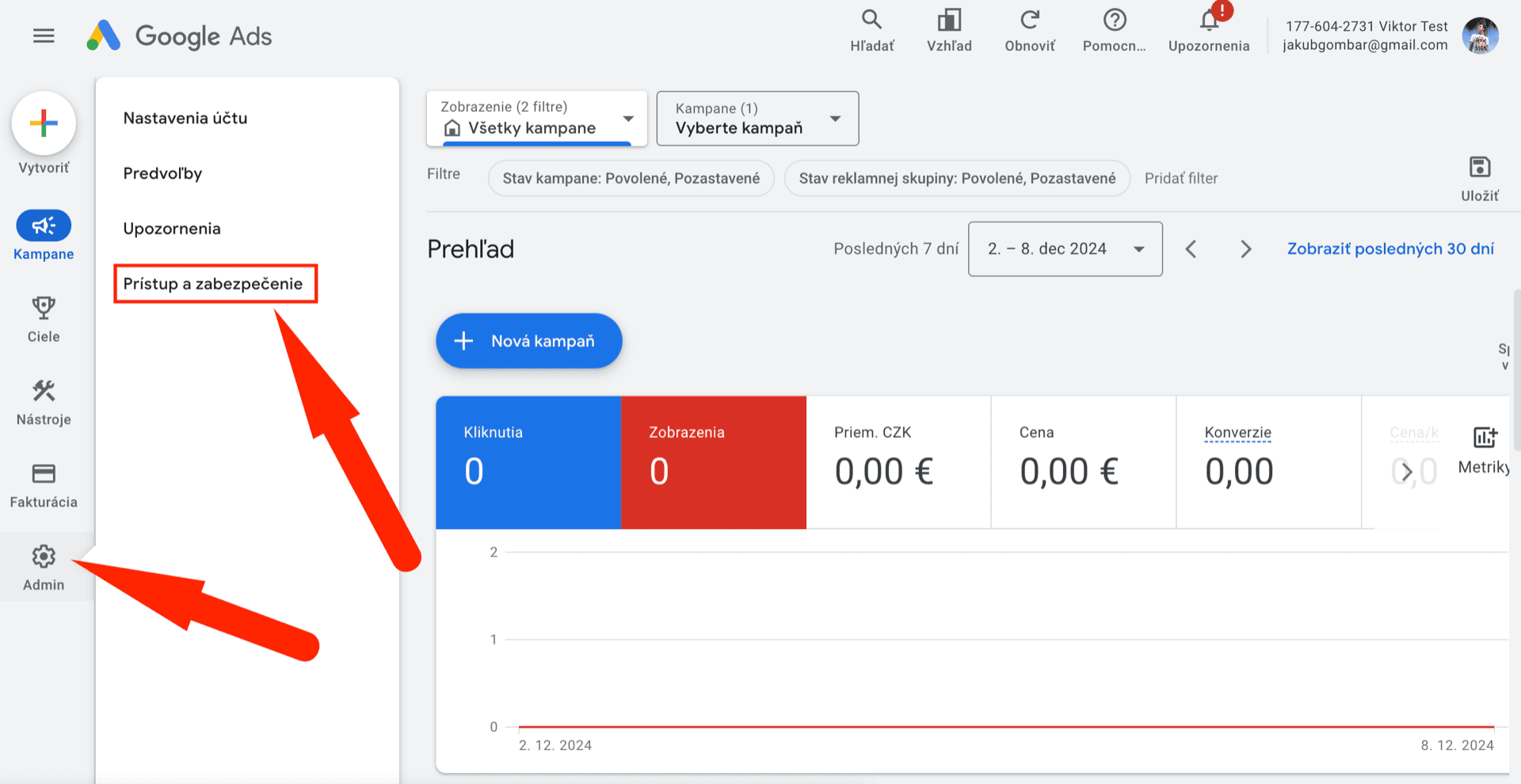
Once the agency has requested access, it is your turn. After signing in to your Google Ads account, click thecog icon "Admin" in the left menu and then "Access and security" in the context menu.
Approving the agency's request
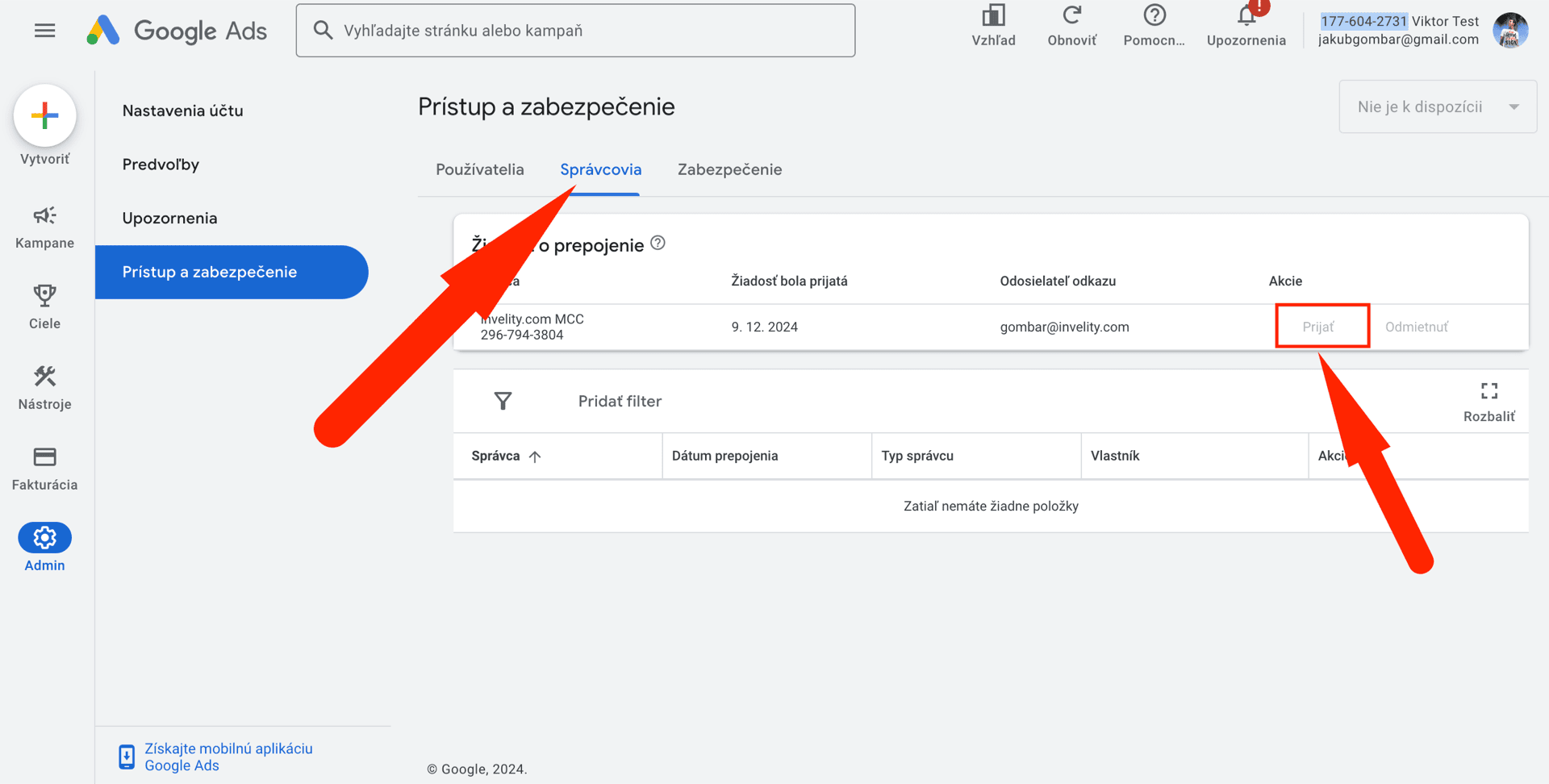
You will then see all the users and account managers and can set up the account's security method. There you will also find the request from the agency, which needs approving. By approving the request you grant the agency access to all the data in your account.
To approve the agency's request you need to go to the "Managers" tab, where the link request will be highlighted. A simple click on the "Accept" button approves it.
Adding the domain to Security
This step is optional, because at this point the agency already has access to the account. But for it to be able to set up access on its side, for colleagues or for notifications for instance, its domain needs to be added in the "Security" tab.
This is how simply you can connect the account with an agency, which can then carry out every step needed to meet all the agreed goals. If you would like to learn more about working with Google Ads, we recommend the article: Keyword match types in Google Ads.