
Veronika Kseňáková
Certified PPC Specialist
Protecting our online accounts is an essential step in today's digital age. Facebook, as one of the largest social networks, is constantly raising its vigilance and paying attention to account security. Several years ago Facebook introduced identity verification for high-reach accounts. You need authorisation only if you plan to create ads about social issues, elections or politics. Thanks to two-factor authentication it will be transparent that it is an advertisement, and with such an ad it will also be stated who paid for it.
If you wish to authorise your account, you need to do so by providing two documents with your full name. At least one of these documents (which may be an identity card, passport, birth certificate or driving licence) must also contain a photo or date of birth besides the name. Do not be alarmed by that, it is only an emphasis on your safety and the safety of users of the social networks Facebook and Instagram.
Through THIS LINK you can authorise your account so that you can create ads about political topics, for instance. All you have to do is scroll to the end and upload a photo of your identity document there.

Through THIS LINK you can set up two-factor authentication on Facebook, which is good for securing your own profile and also the ad accounts you manage on Facebook. The procedure is very simple.
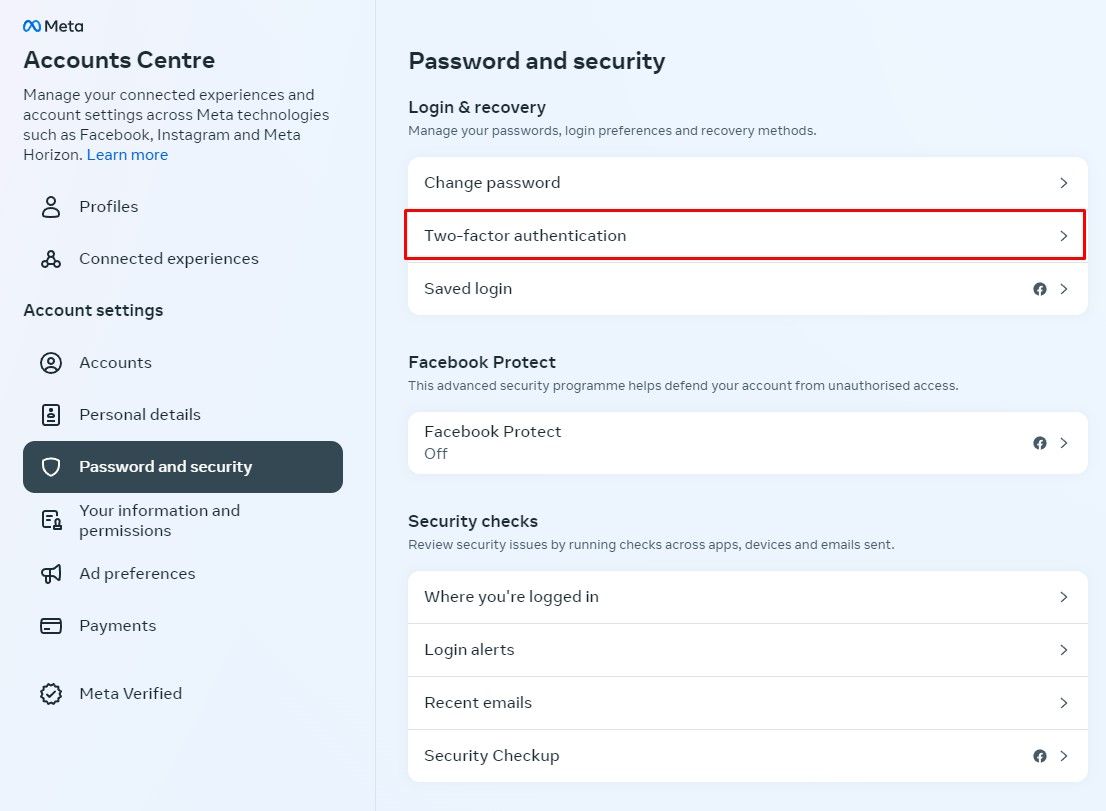
After clicking the link the following page will appear. You choose the option Two-factor authentication.
In the next step you choose which account you want to set two-factor authentication up for.

Then you click Try Another Way.
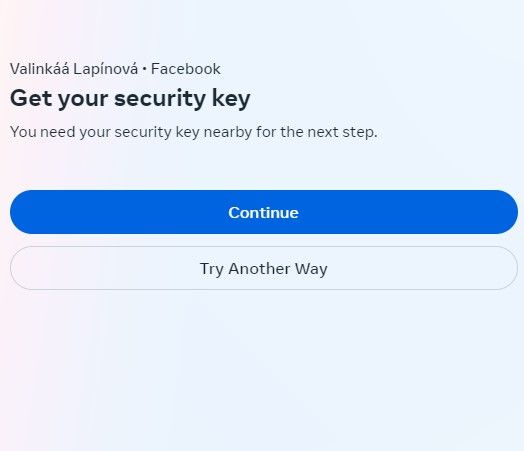
You choose the option of an SMS message, which will come to the telephone number you have in the account.

And that is it! After these few simple steps you have set up two-factor authentication.
Setting up another method of two-factor authentication is no problem. Nor is it a problem to change the telephone number in such authentication.
So now your account's security is taken care of. Should you have any questions, do not hesitate to get in touch.

Veronika Kseňáková
Certified PPC Specialist
The latest trends, proven practices and analyses from the digital world. Find out how to take your technology and marketing growth further.
And don't forget to check out Invelity Extras – you'll find a marketing glossary, useful tools and plugins to make your work easier!
Invelity Extras


