Cut the time your projects take
Have you tried working in Photoshop, only to be put off by the enormous number of tools you could not even work out the purpose of? Often you have a simple goal in mind — cropping a photo or changing the canvas size — but cannot pick between so many options. Trying to work out which button is the right one suddenly turns into the mystery of the Bermuda Triangle.
Another problem arises the moment you manage to grasp Photoshop's basic principles but spend a whole day working. There is a way, though, to save yourself several hours of precious time. At first glance keyboard shortcuts might seem more of a burden than a help, but let us take a practical case. A photographer works daily with hundreds of photographs that have to be edited one after another — quite laborious, is it not? Constantly opening a file, editing a layer and then saving the photograph becomes mechanical work over time, work where practicality comes first. Pressing a few keys at once lets them pick tools, manipulate the image and the layers, and make adjustments on the project's canvas.
Keyboard shortcuts for beginners and the advanced alike
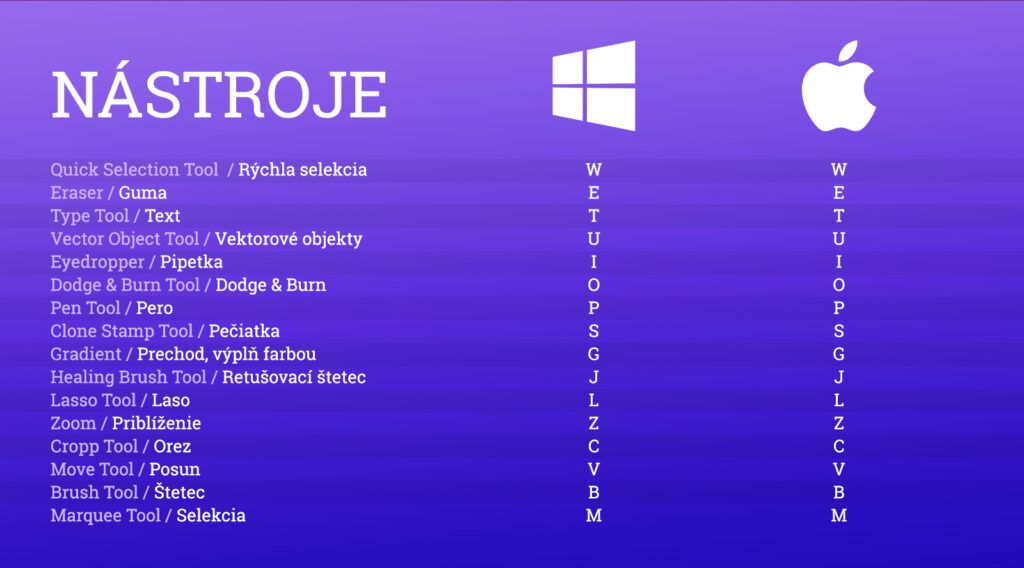
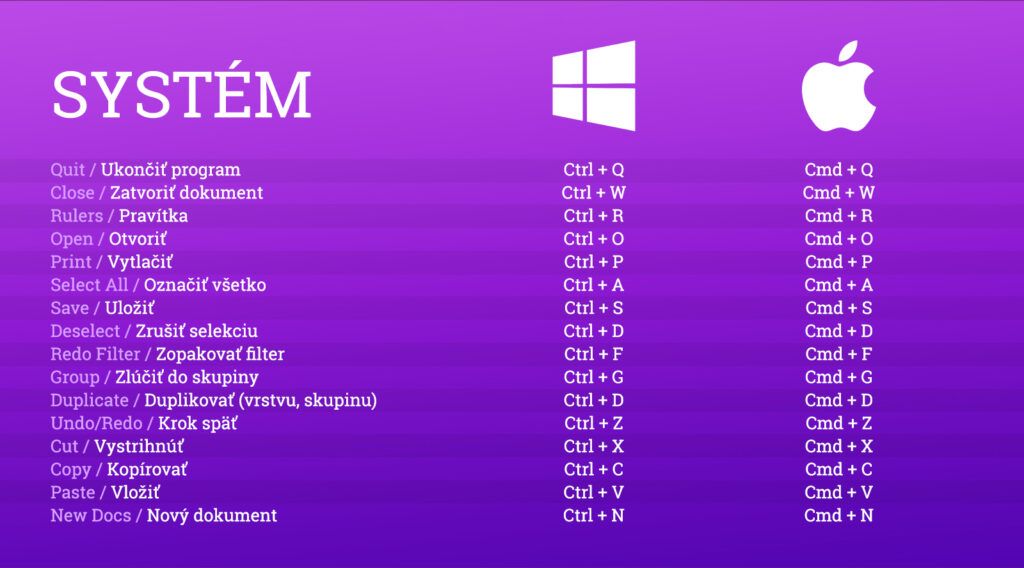
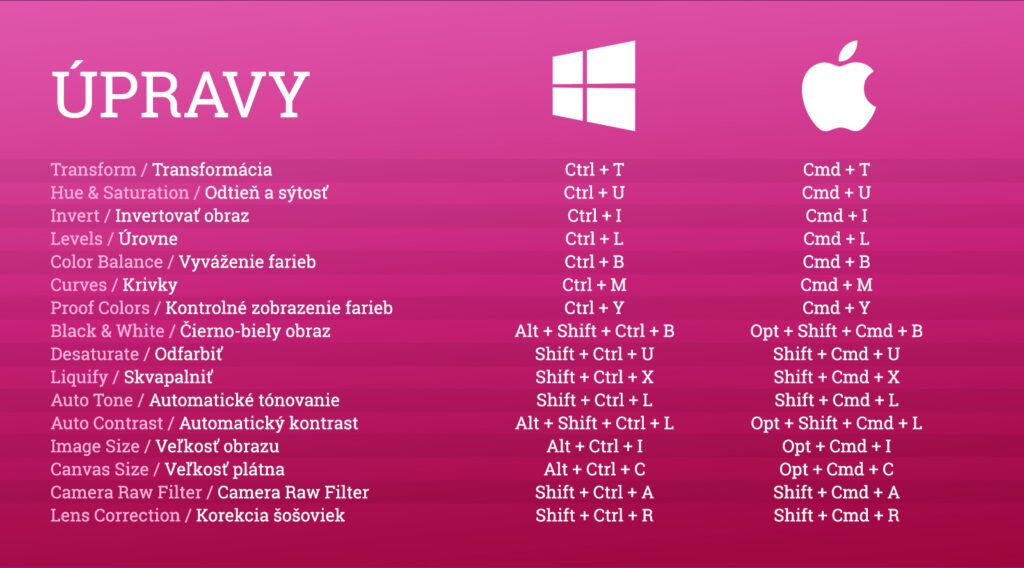
Let us be honest, though: if you are only starting out with the software, it might seem there are far too many Photoshop shortcuts. If you have not mastered the basic skills in the program, it is hard to remember every tool's function and its keyboard shortcut besides. Which is precisely why we have built you a manual that clearly defines the functions of the most-used shortcuts and their key combinations. These instructions are meant for the beginner still getting to know Photoshop and for the advanced user wanting to take their skills and knowledge to a higher level.
It is worth noting that every shortcut mentioned can be used on Windows and on a Mac, but they differ in the use of certain keys. Below in the article you will find the ways to use the shortcuts on both operating systems. One last thing: the plus sign (+) serves only to express a combination of key commands and is not part of the command itself.
We trust that using keyboard shortcuts will speed up your work considerably and make it more pleasant. Getting used to so many new commands may be demanding at first, but the skill improves with time and shortcuts will become second nature. My advice is to be patient. If you feel the shortcuts are slowing your work rather than speeding it up, I can assure you that is a natural stage. In time the skill improves and you will be able to show off the tricks of a professional designer.