How to switch your Instagram account to a business account and what benefits it brings
If you are a company or an individual and would like to improve your Instagram profile, all you have to do is switch your current account to a business one.
If you are a company or an individual and would like to improve your Instagram profile, all you have to do is switch your current account to a business one. It makes working with advertising easier, and you also gain interesting settings for your business profile, more detailed statistics and the option of showing your contact details directly in your profile.
The benefits of switching an Instagram account to a business profile
the option to promote posts as well as manage advertising payment methods,
access to your account's statistics, the so-called insights,
showing business contact details, your company address for instance, which when tapped can display your location,
a contact button directly on the profile with which people can request an email address or telephone number,
if you wish, showing the industry you work in,
the option of opening a shop on Instagram,
better options for working with creators in the case of branded-content advertising,
special settings for frequently asked questions, saved replies, adjusting the minimum permitted age for your followers, or the option of a welcome message when clients open a chat with you,
monetising your content,
the option of adding links to your site or product in Instagram stories (once you reach 10,000 followers),
better management of your messages,
and not least, your profile will look more professional.
A monthly dose of inspiration from Invelity
Every month we deliver fresh news from the world of online marketing straight to your inbox, practical tips from our experienced specialists, an overview of events where we can meet in person, and much more useful information.
How to go about it
1. Sign in to your Instagram account and go to your profile by tapping your profile button in the bottom right corner.
Did you know that if you tap this profile icon twice you can switch between your individual IG accounts?
2. Go to the main menu in your profile.
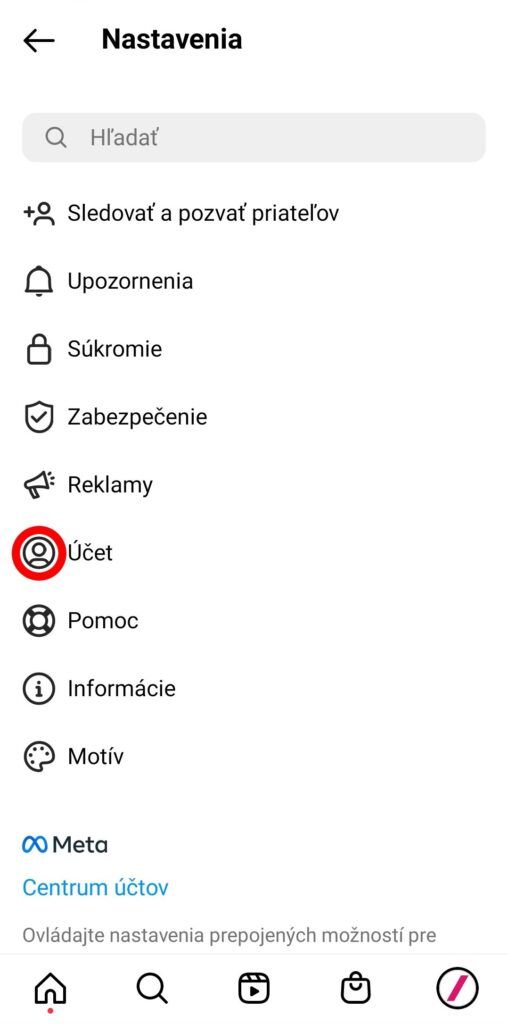
3. Tap "Settings."
4. Choose the "Account" option
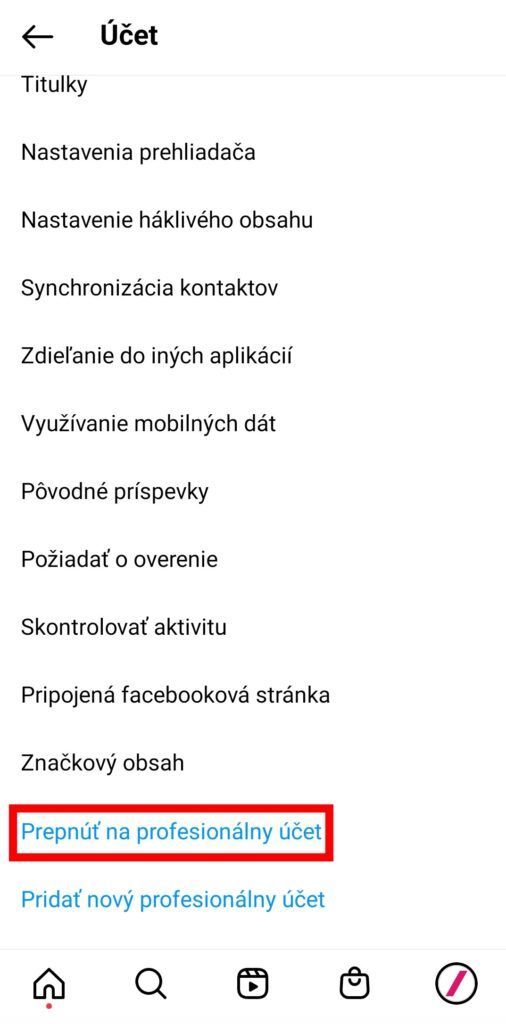
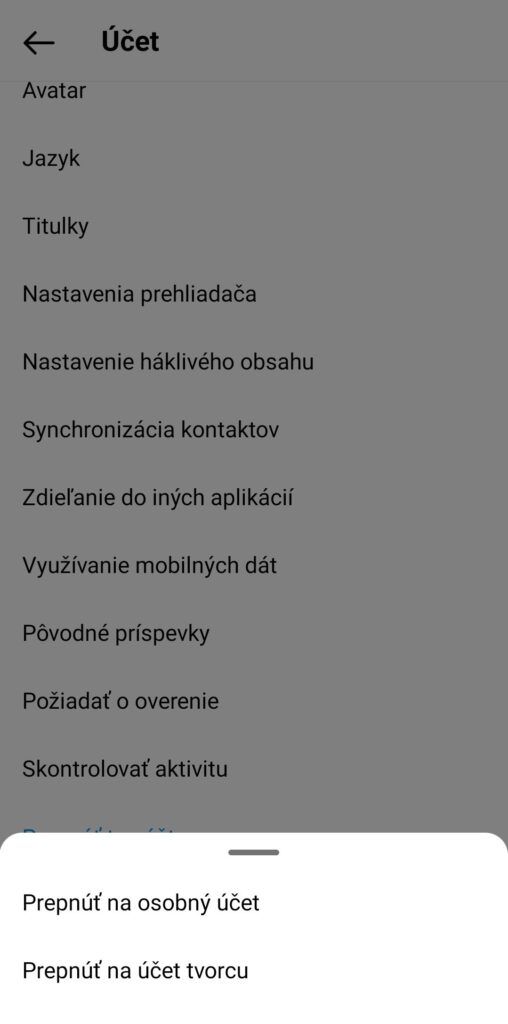
5. Scrolling further down, tap the "Switch to professional account" button
6. Tap continue and click through all the benefits.
If you do not feel like tapping endlessly, you can simply swipe through this list and you will reach the next settings.
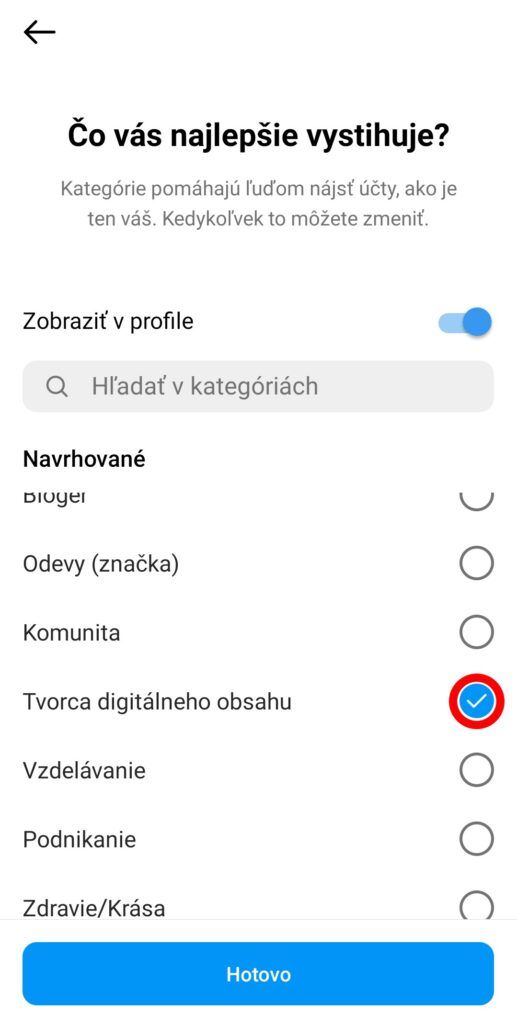
7. Tick the option that describes you best (you can also show this option in your profile) and confirm with the "Done" button.
8. Instagram will ask whether you are a creator or a pure-bred businessperson.
You can change a business account to a creator account later if you like, the same way, within account switching.
In this case we will choose the "Business" option, since we are switching to a business account. If you set up a creator account, you will get different Instagram settings. Such an Instagram may contain more functions for editing posts for creators, as well as a split inbox and other features.
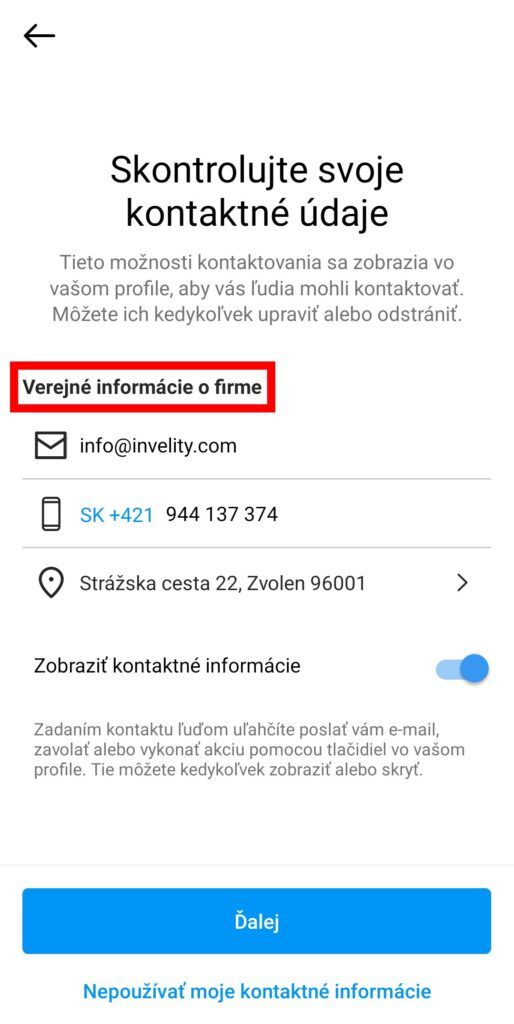
9. You can then fill in the contact details that will appear in your profile and by which people will be able to get in touch with you.
You can edit all this information later in your profile, including your company's registered address.
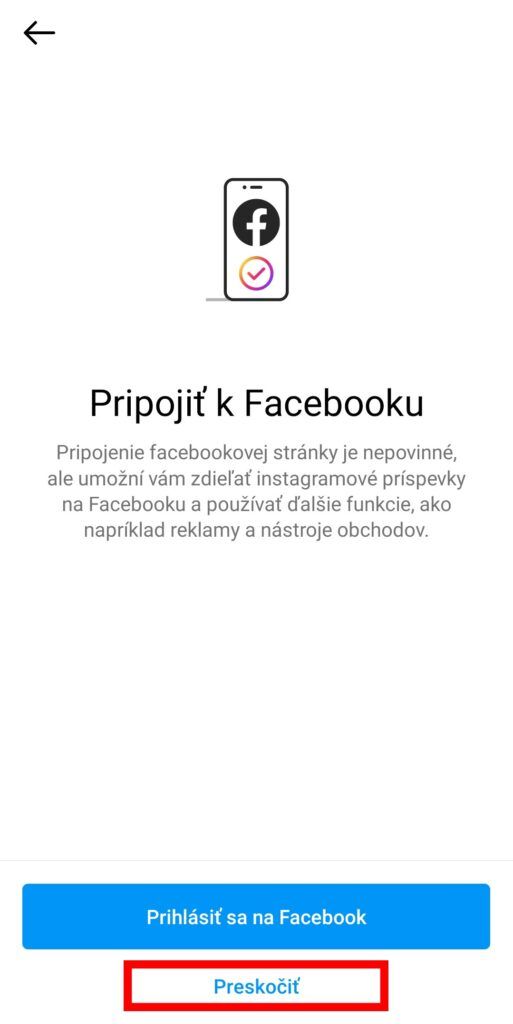
10. Instagram will prompt you to connect your Instagram with your Facebook page. You can skip this step for now, though, and come back to it later.
On the other hand, we recommend connecting your Facebook page with Instagram. You can then publish posts on both platforms at once and gain a better overview of statistics as well as messages.
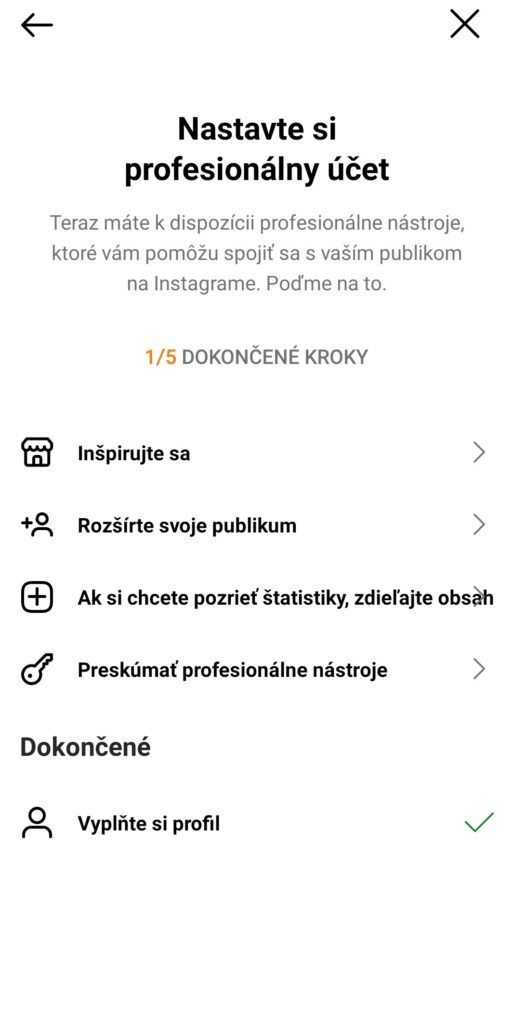
11. In the next step you can finish setting up your profile as Instagram recommends.
You can make these settings later too. Or rather, Instagram will keep reminding you to finish them step by step.
12. We also recommend looking in "Settings" under the "Business" category. Here you can set up further great features such as advertising payments, a minimum age for users or frequently asked questions. In this section you can also open your shop directly on Instagram.
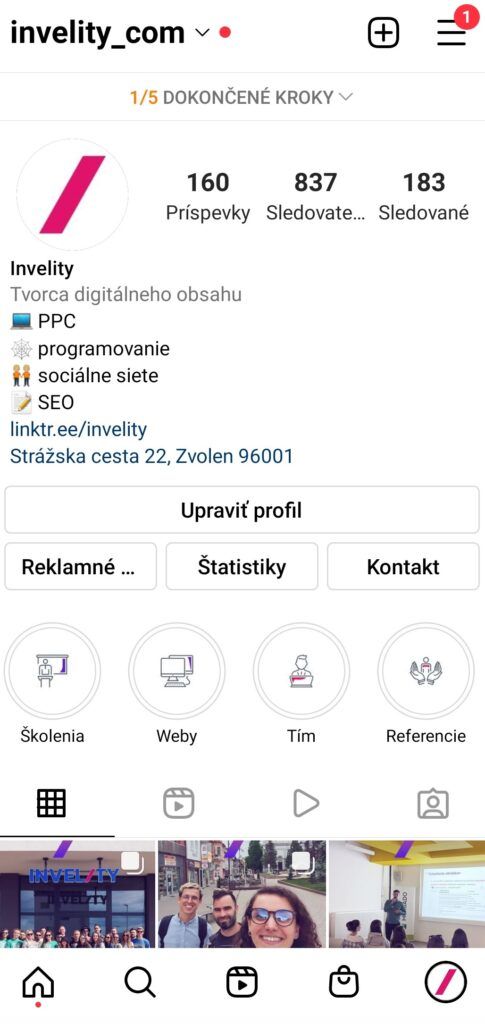
13. If you followed our guide with us, your profile should look like this:
In the screenshot above you can see that our profile has gained labels such as the Digital creator designation, the registered address, and also options for advertising tools, statistics and a contact button. Besides that, Instagram is prompting us to finish setting up our business profile.
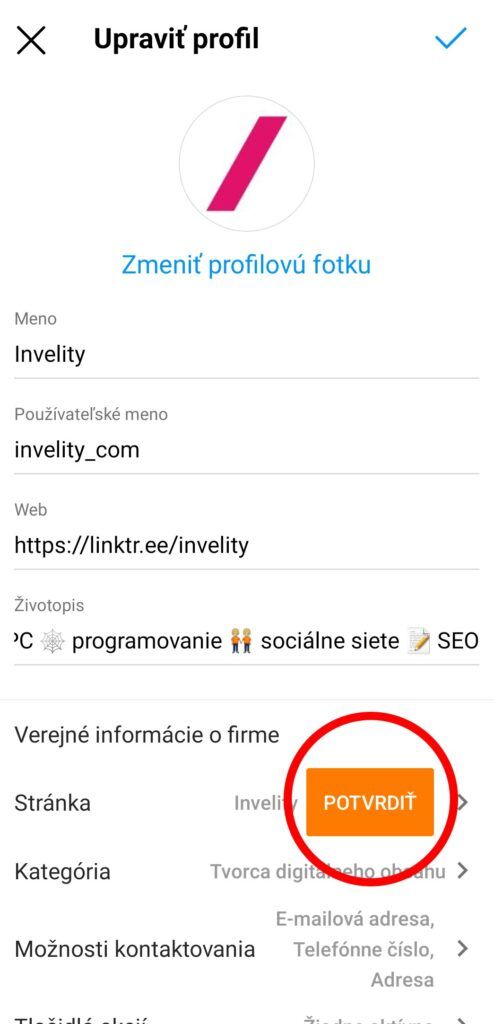
14. If you want to connect your account with your Facebook page and did not do so in step 10, you can now.
After tapping "Edit profile," then in the "Public business information" section tap the "Connect or create" option for your Facebook page. If you have already connected your page with your Instagram account through Facebook, you only have to confirm this option.
15. Should you want to switch your account back to a personal one, you only have to repeat the same procedure, that is go to the main menu of your profile again, in "Settings" choose the "Account" function and select "Switch account type." After that you can choose the option for a personal account or discover new features with a creator account.
If you switch the account to a personal one, you lose the benefits of a business account, but you gain the option of keeping your profile private.
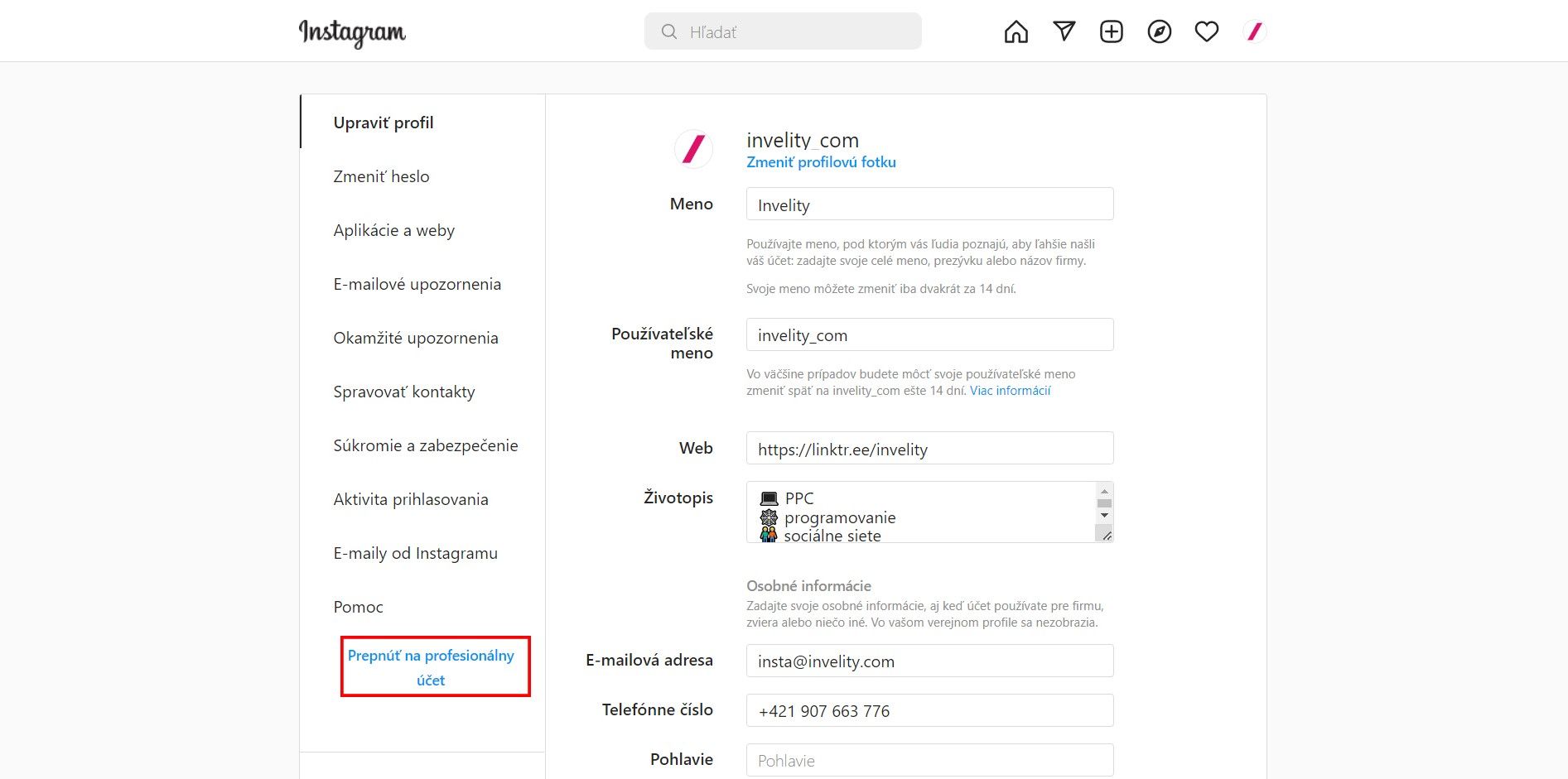
On the subject of switching accounts on Instagram, I often come across the question of whether this procedure can be carried out in the desktop version in a browser too. Yes — after signing in to your Instagram you will find this function likewise in your profile, in the main menu, in the settings section. Specifically in the bottom left corner.