You know how it is: you only want to test something in the e-shop and you place a test order. Or your customer makes a mistake and you need to cancel an order. There are plenty of other "ors", and this article gives you a practical procedure for finding and removing them easily, so that your Google Analytics data reflects reality as closely as possible.
Orders? Where do I find them?
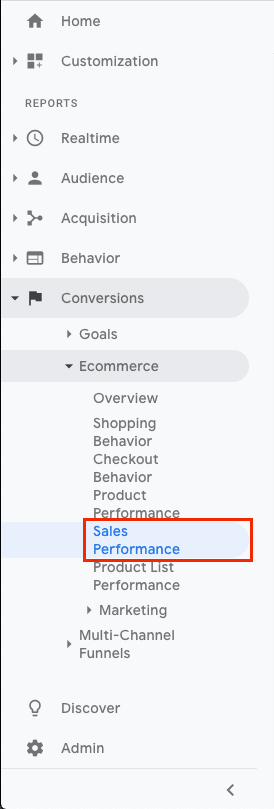
Clear information about every order is, of course, found in Google Analytics. Because that is what this article is about. ;-) So, in the menu you choose Conversions -> Ecommerce -> Sales Performance
What should an order contain?
- Order ID
- Order value – the total value of the order. This amount may include shipping, tax and other adjustments to total revenue.
- Shipping – the total shipping cost.
- Tax – the total tax on the transaction

How do you remove a cancelled or test order?
There are three ways to remove a cancelled or test order. The first two are simple for the user; the third needs a developer's help. All three, though, will need the Transaction ID, which you should find in your e-shop's interface.
Method one: removal through Hit Builder
- Clicking the link takes you to the Hit Builder page. In the orange box click authorize. A pop-up appears; enter your details in it. That stops unauthorised people gaining access and sending hits — in this case negative transactions — into your Google Analytics.
- Click "Add Parameters" and add the various types of parameter:

What each parameter means:
- v = Version. This value is usually 1.
- t = The transaction hit type. Examples of hits other than purchase: pageview, screenview, event and so on.
- tid = Your property ID. UA-12345-1, for instance.
- cid = An anonymous client ID. 123, for instance, or any number.
- ti = Your order ID. 12345, for instance.
- ta = Transaction affiliation. Invelity, for instance.
- tr = Order value. 10.00, for instance.
- ts = Order shipping. 2.00, for instance.
- tt = Order tax. 1.00, for instance.
- cu = Order currency. EUR, USD, GBP and so on.
- Once the parameters are complete you can click "Validate Hit", which checks that your hit is sound and gives you the option of sending it.
- When you send it, an order with the same ID arrives in Google Analytics, but with a negative value, which zeroes out the earlier order.
If you are looking for a substantially simpler route, this Google Chrome extension will please you. It adds extensions to Google Ads, Google Analytics, GTM and several other Google services. Unlike Hit Builder, though, some features are paid. You guess correctly — refunding orders is among them. At present the extension will cost you €5 a month.
With this extension you can easily cancel orders in Google Analytics. The tool builds the hit itself and, if you choose, also sends it.
Google Analytics itself looks like this:

Clicking the button next to the order ID brings up a window like this:
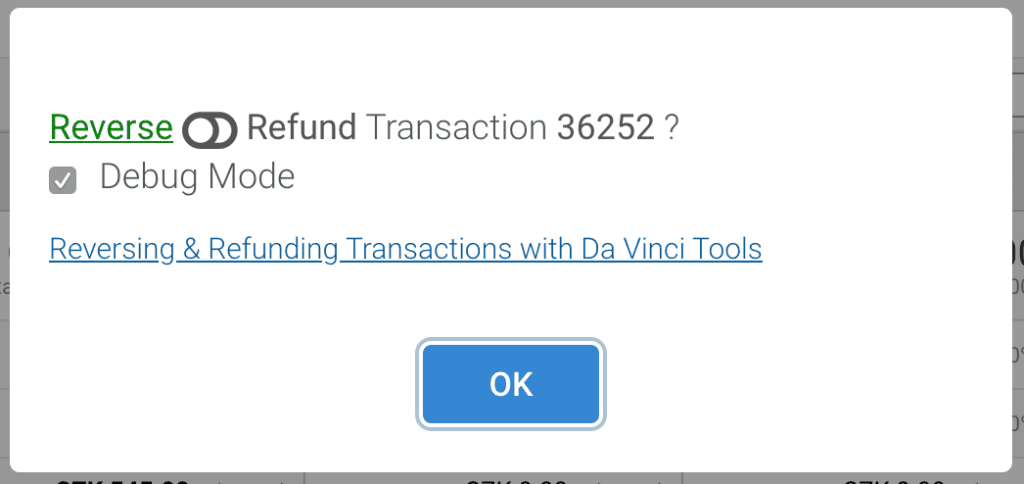
Here you can choose either "Reverse" or "Refund". "Reverse" is used for test orders, when setting up measurement through GTM, for instance. "Refund" is for a cancelled order.
Below is a checkbox for Debug Mode. If it is ticked, the hit is copied but not displayed and not sent automatically. If you leave it unticked, the hit is sent straight into Google Analytics.
After clicking "OK" you have to authorise the account by signing in again.
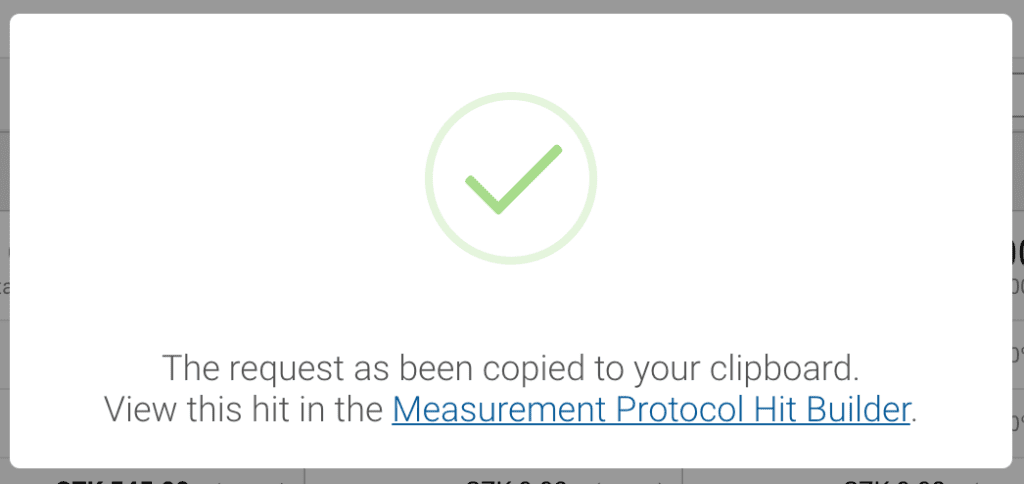
Once signed in successfully, a window appears saying everything went through; the hit is copied and you can then send it by entering the copied URL into the browser.
The hit sent in this case looks as follows:
https://www.google-analytics.com/debug/collect?v=1&tid=UA-XXXXXXXX-1&cid=6823fe71-3cdc-4036-9f84-9246019a2017&t=event&ds=davinci&cs=davinci.tools&cm=referral&dh=www.xxxxxx.xx&dp=%2Fcheckout%2Forder-received%2F36252%2F%3Fkey%3Dwc_order_8OkQEOPoBHMdk&ec=Da%20Vinci%20Tools&ea=Transaction%20Refund&el=36252&pa=refund&ni=1&ti=36252&tr=545&ts=undefined&tt=undefined&z=854634624&pr1id=392&pr1nm=XXXXXX%C2%AE&pr1br=XXXXXX%C2%AE&pr1ca=XXXXXX&pr1pr=465&pr1qt=1
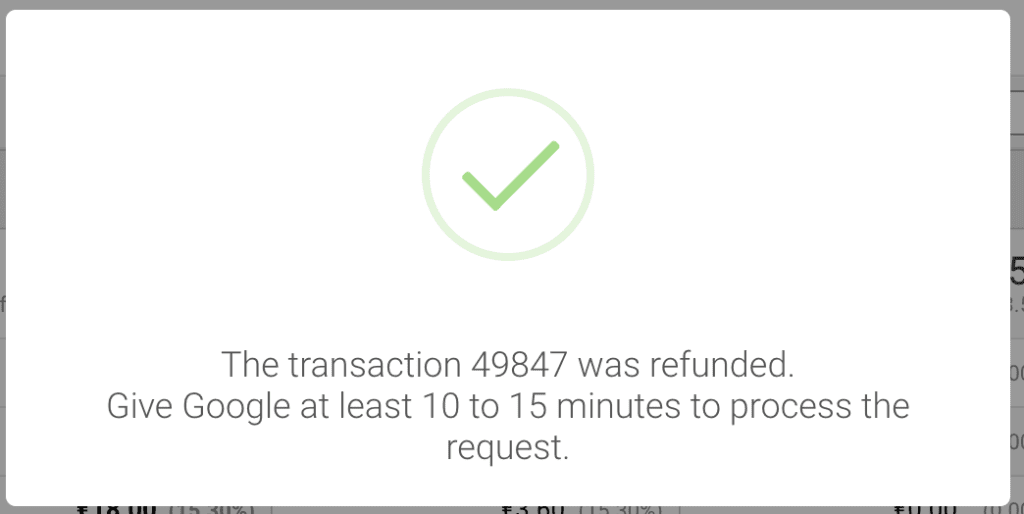
If you do not tick "Debug Mode" and send the refund transaction directly, a window like this appears and you need do nothing further.
Method three: fully automated
Orders can also be tidied up fully automatically, sending a hit automatically when the order status changes in the e-shop. This setup does require a developer and the documentation, which you will find by platform HERE.
Closing tips
When analysing traffic channels or campaigns, Google Analytics is a very useful analytics tool. The better the data it holds, the more it helps you. We recommend the option of creating a negative transaction to every e-shop dealing with unpaid, cancelled or uncollected orders. Disorder can be caused by a single unusually large order, too, which can then distort the overall figures.
Creating a hit to correct a transaction does not remove the original transaction, it merely creates a negative value for it. The maximum delay for creating a correcting hit is 6 months after the transaction. At the same time, if a transaction occurs on 1 October and you correct it with a hit on 5 October, the analysis has to cover a period containing both dates.