
I am interested in a bespoke website
Get in touch and arrange a meeting with us in Bratislava, Zvolen or even San Francisco. We will be glad to help with your project.
We have all come across Google Maps. It is an excellent everyday helper that makes travelling easier. But do you know how to use Maps for your business?
Whether you are starting a business or you are a company that has been on the market for some years, we recommend creating a free business profile through Google My Business, which will draw in new customers. The profile appears not only in Google search but in Maps too, and that can help raise traffic to your site. And the best part of it all? The service offers various interesting features free of charge.
If you are only a small fish in the waters of registrations and installations, we have prepared a detailed guide that will have you managing it with ease.
Open the Google My Business page and click "manage". Type your company's name and click "Create a business with this name".

Here type your company's name exactly as you want it shown on Google (accents, upper and lower case…) and click the "Next" button.
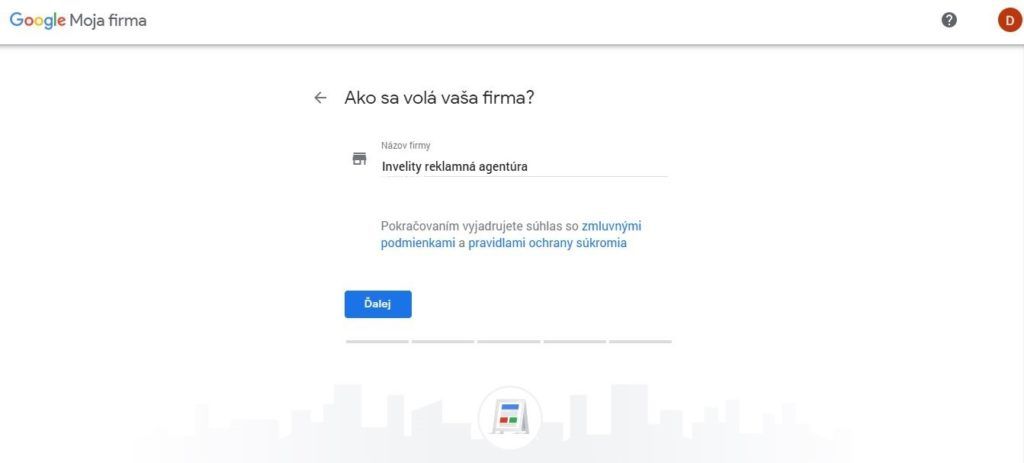
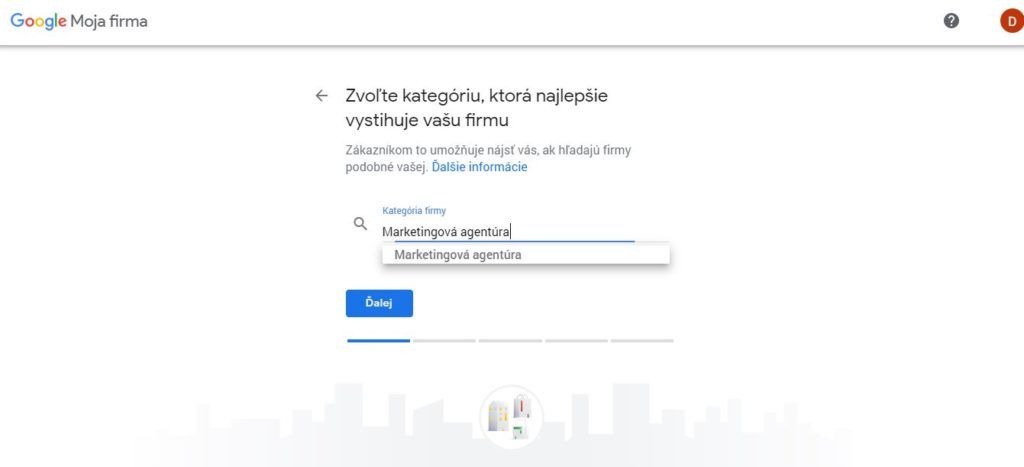
In the next step you choose the category your business falls into.
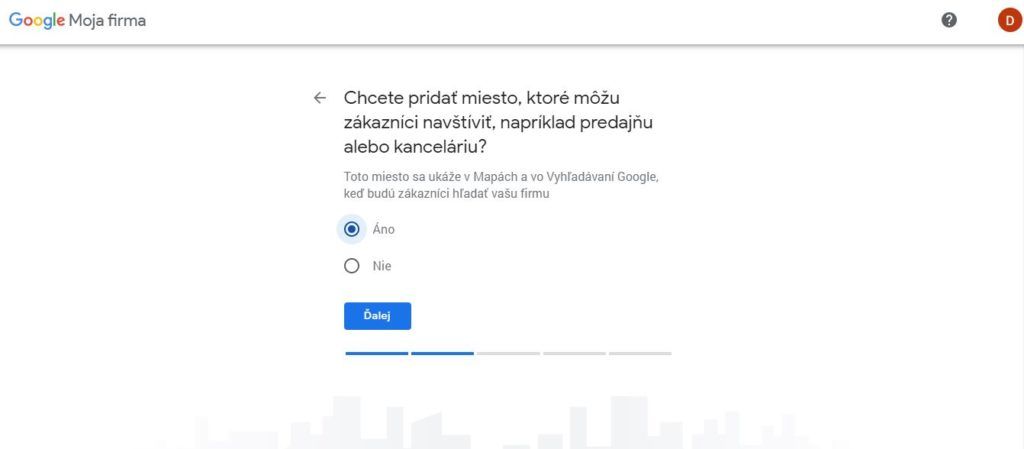
Google then asks whether you want to add a location customers can visit. So if you want to appear in Google Maps, tick "Yes".
Next you fill in the address where your business is based.

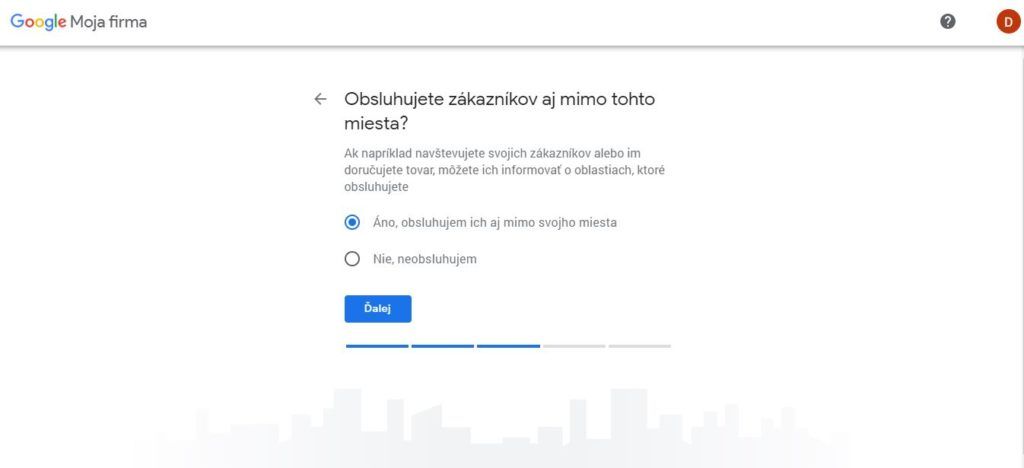
If you want to add other areas you operate in, choose "Yes" and then pick the towns you want.

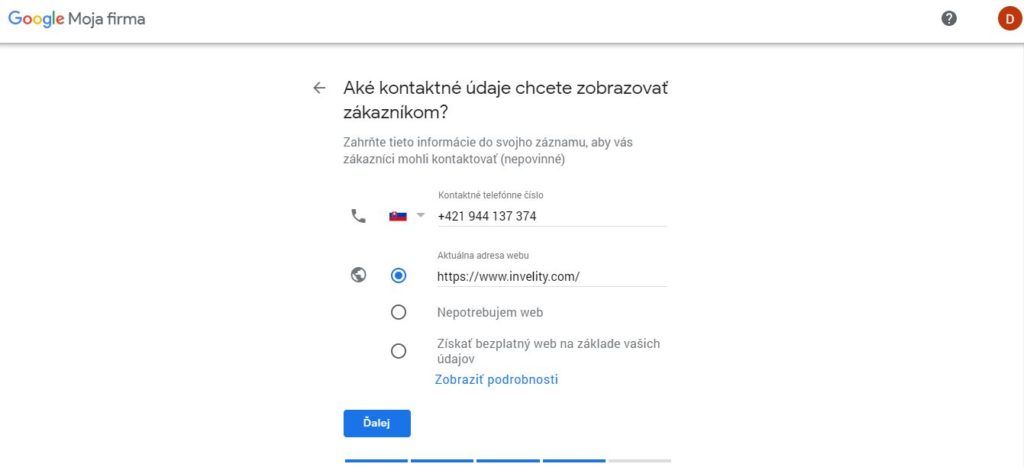
Here you fill in the contact details customers will see (phone number and website).
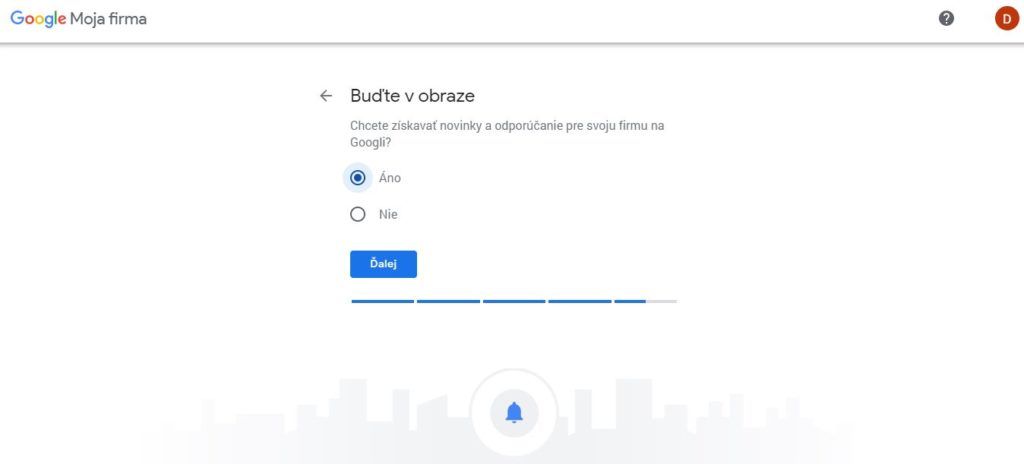
Next you are asked whether you want to receive news and recommendations for your business on Google. Which option you choose is up to you.
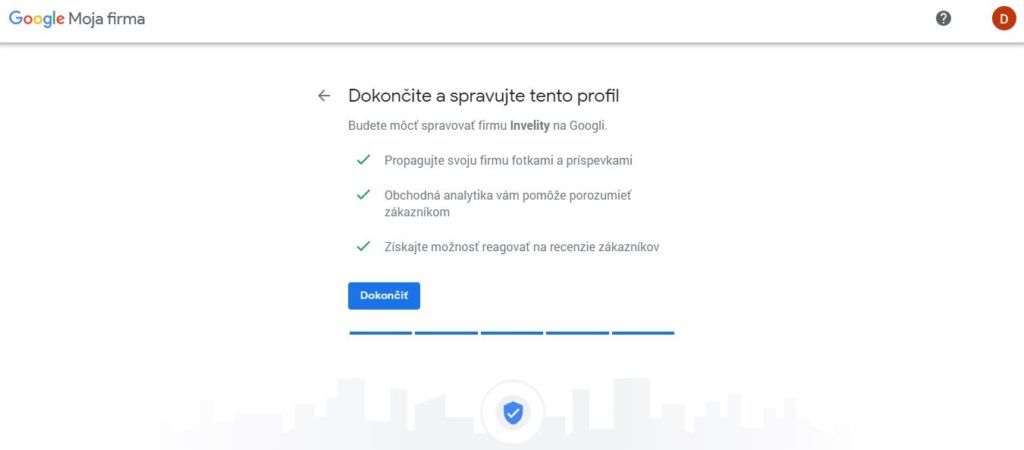
If everything is filled in correctly, press the "finish" icon.
Once finished it is important to verify your business so it can appear to customers in search and maps. Most businesses use verification by post; some can also use verification by email, by phone or through Search Console. With postal verification a letter with a 5-digit verification code arrives, usually within 14 days.

While waiting for the verification code you can add opening hours, a description or a logo to the profile. CAREFUL! Do not edit the business name, address or category, and do not request a new code, unless 14 days have passed since the previous one was sent.
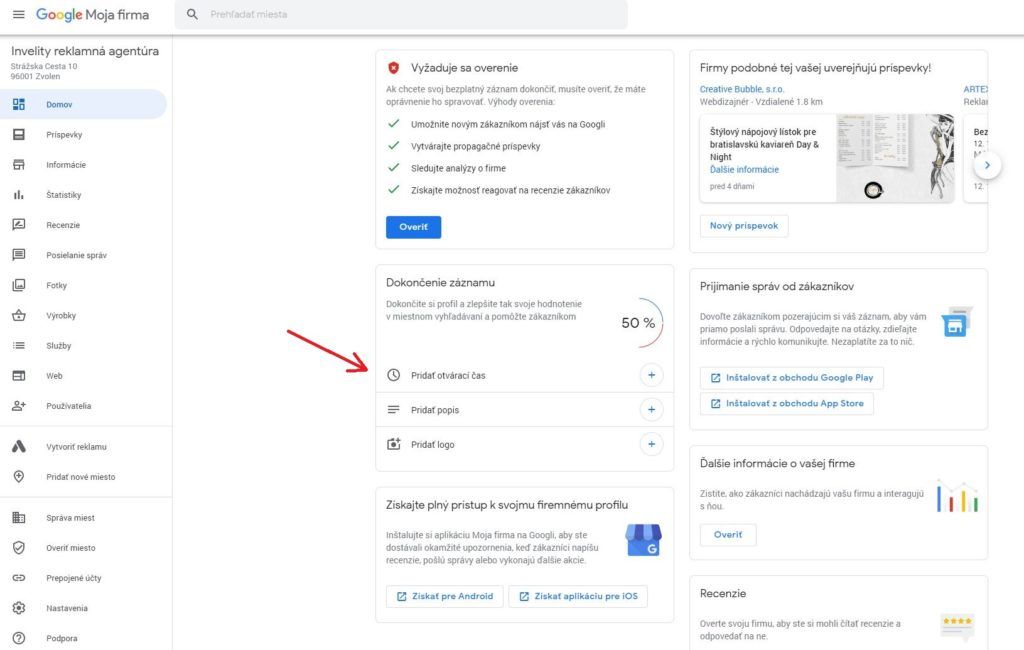
When the verification code arrives, click the "Verify" icon in the profile and enter the 5-digit code.
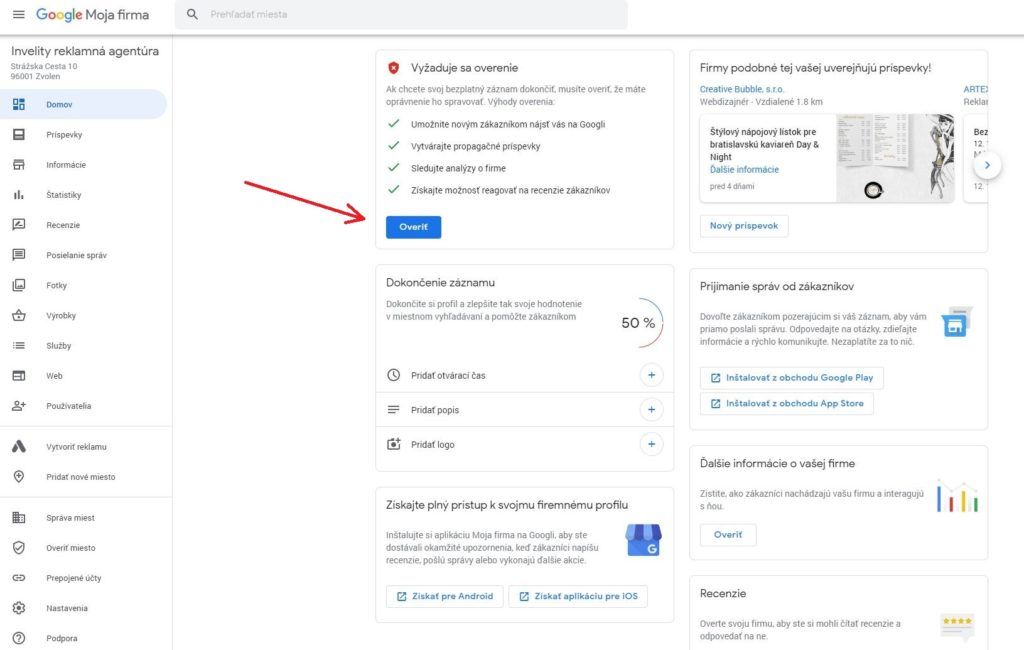
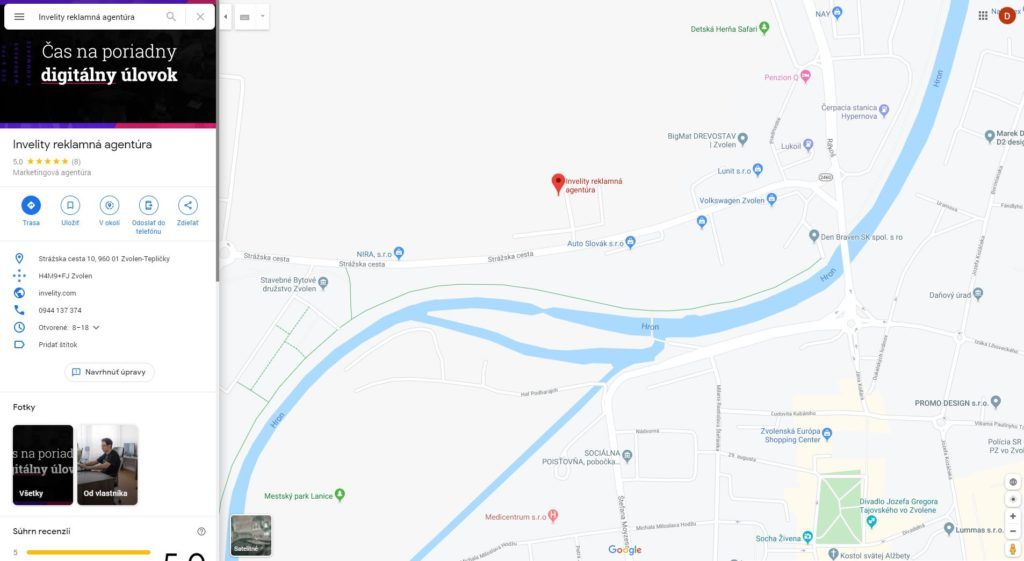
DONE! Your business should now appear successfully in Google Maps and in search.
Get in touch and arrange a meeting with us in Bratislava, Zvolen or even San Francisco. We will be glad to help with your project.

Jakub Gombár
Co-Founder
The latest trends, proven practices and analyses from the digital world. Find out how to take your technology and marketing growth further.
And don't forget to check out Invelity Extras – you'll find a marketing glossary, useful tools and plugins to make your work easier!
Invelity Extras


