5 steps for setting up permissions on Websupport
If you have decided to create a website, you probably already have hosting and a domain.

Barbora Hermanová
Project Manager
15. November 2024
2 min
BeginnerIf you have decided to create a website, you probably already have hosting and a domain.
Barbora Hermanová
Project Manager
15. November 2024
2 min
BeginnerIf you have decided to create a website, you probably already have hosting and a domain. There is a good chance you chose one of the best providers in Slovakia – Websupport. In this article you will find a simple guide to granting your developer full access to your website without needing to share your password.
Start by signing in to the Websupport admin interface. Visit https://admin.websupport.sk and enter your username and password. With two-factor authentication you give your account better protection.

Once signed in you will reach the home page. In the top right corner, next to your name, you will find a cog – that is the account settings. Click it and then choose the "Service permissions" option.

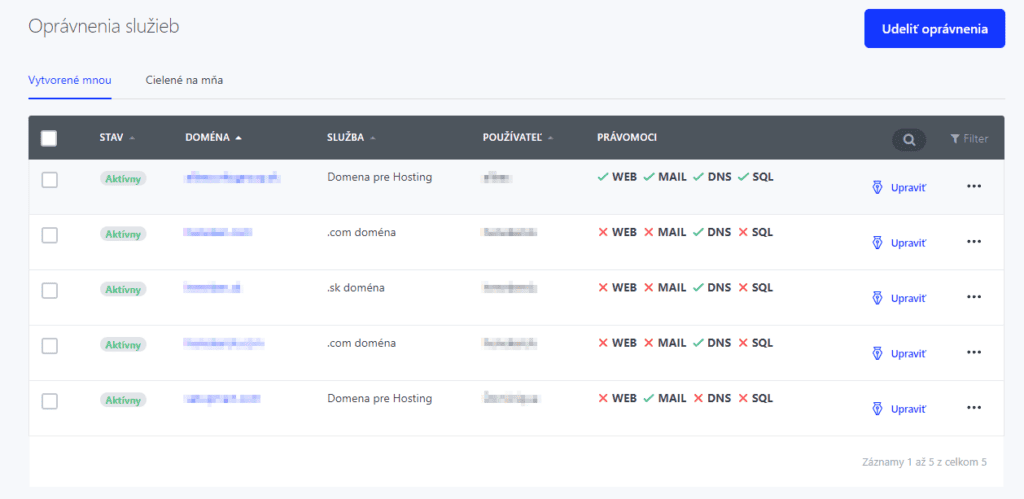
You are now on the service permissions board. In the top right corner click the blue "Grant permissions" button. A table will appear where you can choose the service (domain) you want to give the developer access to.
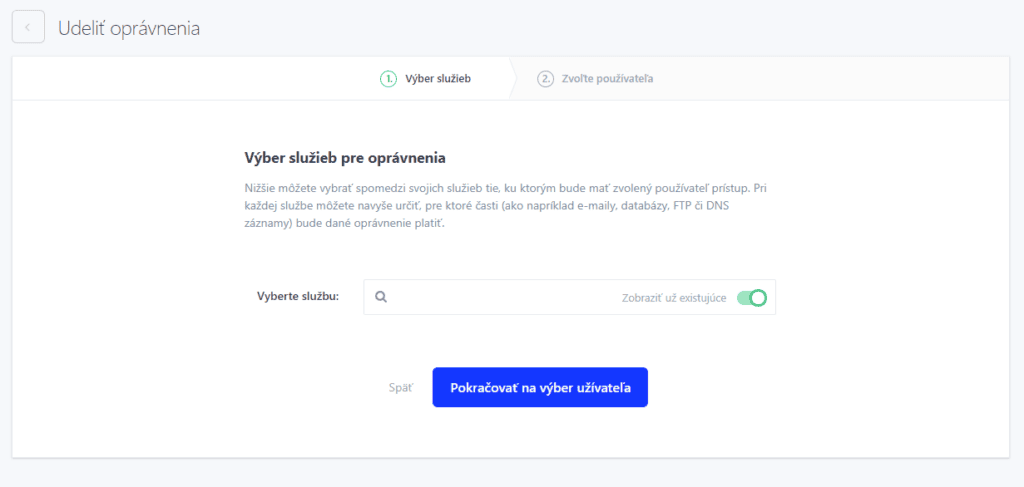
Click the empty field, where a list of your domains will appear. If you have several domains, choose the one you want to assign to the developer. You do that by simply clicking the domain's name.
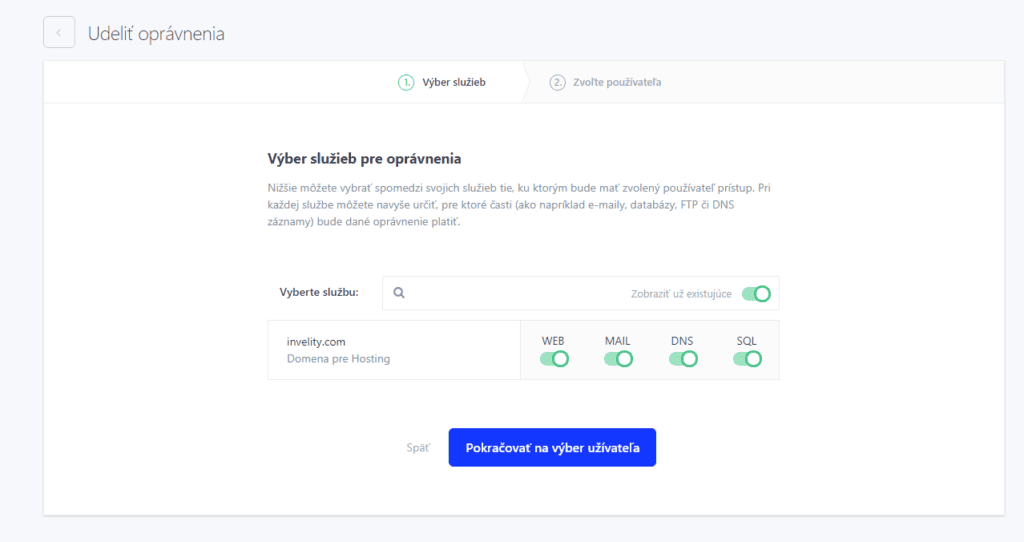
Having chosen the domain, 4 toggles will appear determining which areas the developer will have access to:
If you do not know which access to grant, it is better to leave all the toggles on. The developer should know what they need.
Click the blue "Continue to user selection" button. Here you enter the developer's account name. You should have this detail directly from them. Having entered the name, click "Confirm".

This way you have successfully granted the developer access to managing your site on Websupport without having to reveal your password. This step guarantees your account's security and gives the developer all the tools needed to manage the site. If you ever decide to revoke or adjust the rights, you can do so in the same interface.
Barbora Hermanová
Project Manager
The latest trends, proven practices and analyses from the digital world. Find out how to take your technology and marketing growth further.
And don't forget to check out Invelity Extras – you'll find a marketing glossary, useful tools and plugins to make your work easier!
Invelity Extras