The most popular web analytics tool is standard on most websites. Google Analytics quietly gathers useful data about your site's visitors — what devices they use, where they came from or what they do on the pages. That data is free, as are the 3 tweaks that will help you set it up. You need not be a web analyst to profit from them, and if at any point in future someone experienced takes over your Google Analytics account, they will certainly appreciate more data. Yes, you guess correctly — recovering data retrospectively is in most cases impossible.
1. Measure searches on your site
Most often on e-shops, but on other sites too, you come across a search box where you enter the name or brand of a product and are then taken to a page of relevant results. Google Analytics can capture these searches and you can then find out exactly what is searched for, what % of visits use the search box and, for instance, whether visitors who use site search are more likely to buy or not.
Once configured, you will find this interesting data in the Behaviour section:

The report shows, for example, how many people left the site after using search.
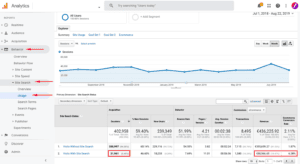
Search box usage. In the screenshot you may notice that although only 5.45% of visitors used search, it brought in 18.47% of revenue.

You can also review statistics on the products site visitors searched for.
To see this data, a simple configuration is needed in Google Analytics at view level:
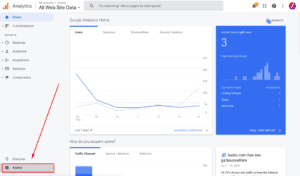
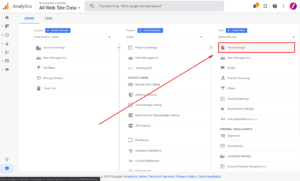
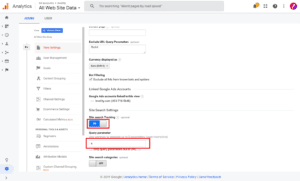
Every site may have a different search parameter, so a test has to be run on your own site.

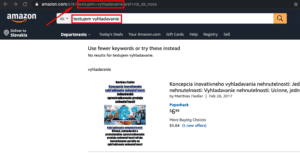
The search parameter is the letter or word sitting between a question mark or an "&" and an equals sign, followed by your test search query.
Only after this simple configuration will you see the data. You need not watch it every day; it comes in handy when you are looking for answers to questions such as what range to place somewhere more visible on the site or whether you stock all the products and brands people look for with you.
2. Track demographics and interests in your reports
The next setting will also take you only a few seconds. Thanks to it your reports will show whether more men or women visit your site, and in what age bracket. Besides demographics you can find out their interests according to Google. That can improve your picture of your target group simply and free of charge. Again, the data will only be collected from the date you enabled collection.
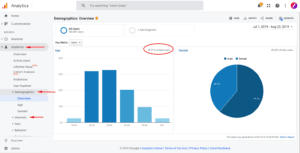
Demographic reports and visitor interests are found in the Audience section. The report also shows the size of the sample of your visitors.
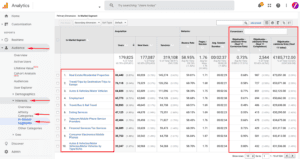
Besides demographic reports you can review the short-term and long-term interests of your site's visitors and target accordingly — display ads on the Google network, for instance.
Information about demographics, interests and buying intent can also be put to use when setting up ads in Google Ads. Display and banner advertising can be targeted by the same data Google shows you in these reports. So if the reports then tell you that a particular interest has a high conversion rate, it is worth considering targeting it more precisely. Conversely, if some age group of visitors buys only rarely on your site, we can exclude them from display or video advertising and steer the budget to where its efficiency will probably be higher.
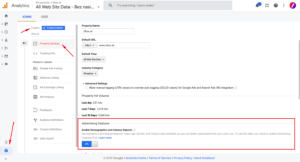
To enable measurement of interest and demographic data, the setting has to be enabled at Property level, as in the screenshot above.
3. Link your Google Ads account with Google Analytics
The third setting in our round-up will also take no more than a minute or two. If you advertise through Google Ads yourself, or somebody manages the advertising for you, it would again be a shame not to connect and import that data into Google Analytics as well.
Once linked, you will have the option of seeing Google Analytics data in the Google Ads interface too — specifically bounce rate, average pages per session and average session duration.
Another option will be importing goals from Google Analytics. That is better than not measuring them at all and is within reach of less technically confident users, but the ideal choice is measuring goals in Google Ads directly through the conversion tag.
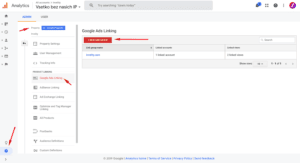
Linking is configured at Property level in the settings. If you have no option to add a new link, you do not have Edit permissions.
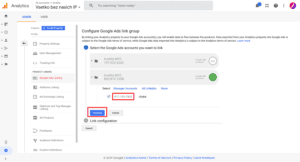
In the next step you choose the Google Ads account you want to link. If you have access to several accounts, do not go by the name alone but above all by the 10-digit ID. It is also important to be signed into Google Analytics under the same Google account you have access to the Google Ads account with, otherwise you will not see it there. In the following step you simply choose which Views to import the data into (I recommend selecting all of them) and confirm the link.
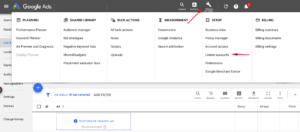
To have the Google Analytics metrics available, they have to be configured in the Google Ads interface as well.
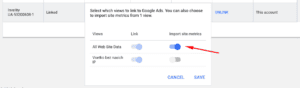
Opening the Google Analytics box shows the linked GA account. Opening the Views column lets you choose which View to import metrics into Google Ads from. Likewise, if you choose the import option under conversions, you will find your Google Analytics goals there, which you can then import and use to optimise campaigns or to see the performance of individual keywords and targeting.
The advantages of this link show up when the ad account changes, for instance. If you have linked several accounts with Google Analytics, you will find all the data from those accounts displayed continuously in one report, and comparing results will be simpler too. If you want to avoid the basic and common mistakes in Google Ads, I recommend reading the article where I describe the 3 most common mistakes in Google Ads, which I come across regularly.
In closing
We live in an age of data, and it is partly thanks to data that Facebook and Google became some of the most valuable companies in the world. Since data is the new oil, it would be a shame not to track it better and in more detail, especially when it takes only a few minutes of your time and costs nothing extra. You can profit from data within days or weeks, and just as effectively much later, when specialists look into your Google Analytics. Then the data helps them with targeting, keyword analysis or building a communication strategy.
Need advice? Would you like to mine more out of the data in your Google Analytics? Write to us.